About SSH
The Bitwarden SSH Agent is a feature of the desktop app that allows you to store, manage, and use SSH keys across all of your machines. The desktop app acts as an alternative to your operating system's native SSH agent, using the vault for encrypted key storage instead of the local filesystem.
When the SSH Agent is enabled, the Bitwarden desktop app exposes a local socket that your SSH client communicates with. Tools such as ssh, git, and other SSH-dependent applications send signing requests to the Bitwarden agent instead of the native system agent. Bitwarden handles those requests using keys stored in your vault, prompting you to authorize access based on your configured settings.
The agent supports the following operations:
Listing keys
Request signing
Agent forwarding
SSH key items are a vault item type supported across the Bitwarden desktop app, web app, browser extension, and mobile apps. Keys can be generated or imported using the desktop app, web app, and browser extension.
Each SSH key item stores the following fields:
Field | Description |
|---|---|
Key name | A display name for the key. |
Private key | The sensitive key material used for authentication. |
Public key | The portion of the key shared with servers or services. |
Fingerprint | A short identifier derived from the public key, useful for verifying signed commits. |
SSH key items support the same Bitwarden features as other vault items, including folders, favorites, master password re-prompt, notes, cloning items, attachments, and custom fields.
To create a new SSH key:
Select the New button and choose SSH key as the item type:
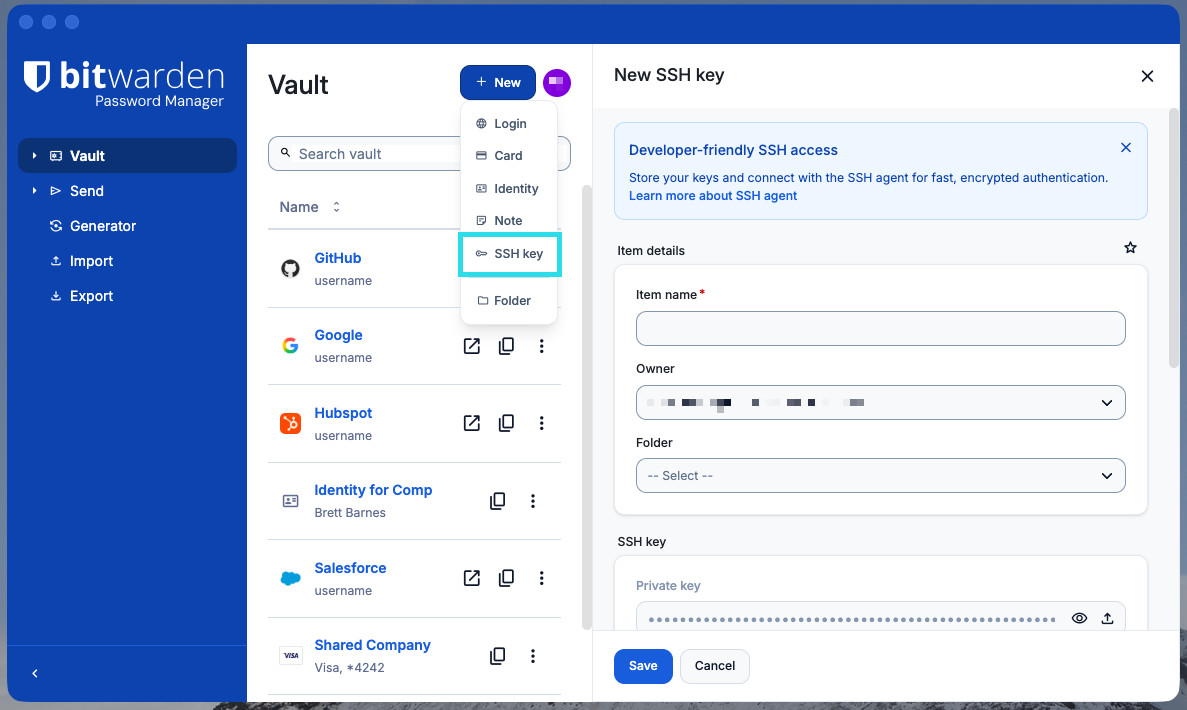
Crear nueva clave SSH en el escritorio Fill in remaining details such as Name and select the Save icon once you are finished.

En este momento, Bitwarden sólo puede generar claves SSH de tipo ED25519.
To edit an existing SSH key, locate it in your vault and select Edit. Editable fields include the key name, folder, owner, and custom fields. The key material itself cannot be modified after creation.
SSH keys can be created and stored in an organization collection. Organization members with appropriate permissions may create, manage, and access SSH keys owned by an organization. Learn more about collection permissions.
To add a new shared SSH key to the organization vault:
On the Vault view of the desktop or web app, select the New button and select SSH key.
tipLos propietarios de la organización, los administradores y algunos usuarios personalizados también pueden realizar este paso directamente desde Admin Console para omitir algunos de los pasos de este proceso.
Using the Owner dropdown, choose the organization you want this item to be owned by.
Using the Collections dropdown, choose the collection(s) to share this item with.
En general, los recursos que utilizan claves SSH pueden admitir claves por usuario. Recomendamos revisar las mejores prácticas de claves SSH antes de compartir claves SSH con una organización.
The import function for SSH keys is available on the Bitwarden desktop app. Using the Bitwarden desktop app:
Select the New button and choose SSH key as the item type.
Copy the existing SSH key you want to import into Bitwarden.
When copying, include the header and footer of the key, for example
-----BEGIN OPENSSH PRIVATE KEY-----and-----END OPENSSH PRIVATE KEY-----.
Use the Import key from clipboard icon. This will automatically paste the SSH key into Bitwarden.
At this time, imported keys must be in OpenSSH or PKCS#8 format.
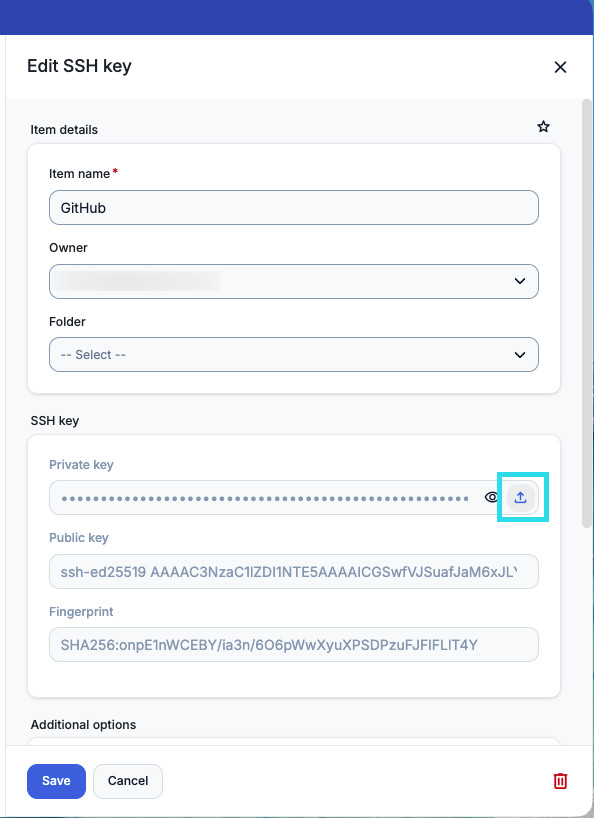
Importar una clave SSH

En este momento, las claves SSH importadas desde Putty no son compatibles.
SSH item's public keys can be autofilled using the browser extension, for example when adding a public key to a service such as GitHub or GitLab. Autofill using two methods:
Inline menu: Select the matching SSH key item from the inline menu that appears when a supported form field is detected.
Autofill button: Open the SSH item in the browser extension and select Autofill.
Learn more about autofill methods for the browser extension.
The SSH Agent supports the following key types:
Ed25519
RSA (SHA-256 and SHA-512)
The following operations are not currently supported by the Bitwarden SSH Agent.