Request & Grant Emergency Access
As a trusted emergency contact, you may want to request emergency access to a Bitwarden vault when the account holder is unreachable or forgets their master password. Once requested, the account holder can approve or deny access, or it will be granted automatically after your configured wait time passes.
There are three steps for a trusted emergency contact to gain emergency access:

As the account holder, you can control a trusted emergency contact's access to your account at three points:
Remove them from your list of trusted emergency contacts.
Approve or deny their pending request for emergency access.
Revoke their granted emergency access. The steps depend on whether they were granted view or takeover access.
If you can still log in to your account when a trusted emergency contact requests access, you can approve or deny the request before the wait time expires. To approve or reject an emergency access request:
In the Bitwarden web app, go to Settings → Emergency access.
In the Trusted emergency contacts section, select the Menu icon next to the account that requested access.
Select Approve or Reject:
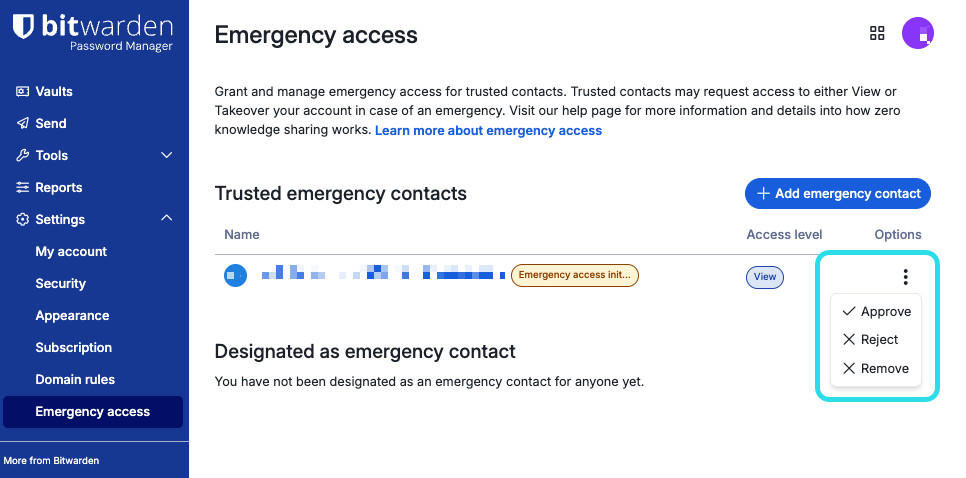
Approve or reject emergency access

When someone is granted view access via emergency access, they can review your vault items until you revoke it.
To revoke someone's view access granted via emergency access:
In the Bitwarden web app, go to Settings → Emergency access.
In the Trusted emergency contacts section, select the Menu icon next to the account with active emergency access.
Select Reject:
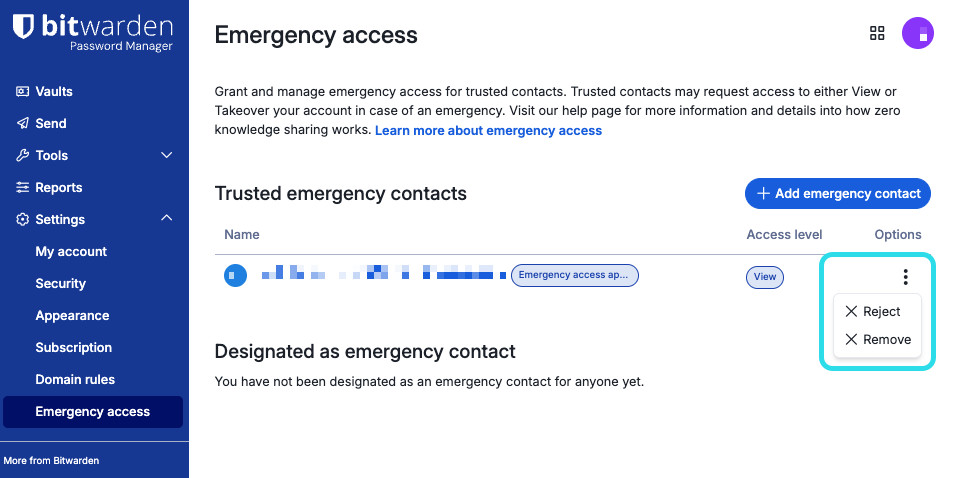
Reject emergency access

When a trusted emergency contact is granted and uses takeover access, they change the master password on your account. As a result, the only way to remove their access is to:
Obtain the new master password they created for your account.
Log in to the web app with the new master password.
Change your master password to one that they do not know.