Blumira SIEM
Blumira is a security information and event management (SIEM) and extended detection and response (XDR) platform that centralizes log data from across your environment. Bitwarden integrates with Blumira by forwarding organization event log data, giving security teams unified visibility into password management activity alongside the rest of their security data.
Bitwarden sends events to Blumira using HTTP ingestion. After generating a unique endpoint and token in Blumira, you'll add those values to the Blumira integration in the Bitwarden Admin Console.
To set up Bitwarden as a log source in Blumira, you must:
Have a Bitwarden Teams or Enterprise organization.
Have a Blumira account with the ability to add HTTP ingestion instances.
Have administrative access to both Bitwarden and Blumira.
Integrating Bitwarden with Blumira will require short setup procedures in both platforms.
Before connecting from Bitwarden, generate the credentials that Bitwarden will use to send events to Blumira:
Log in to the Blumira app and go to Ingestion → HTTP Ingestion.
Select Add Ingestion Instance:
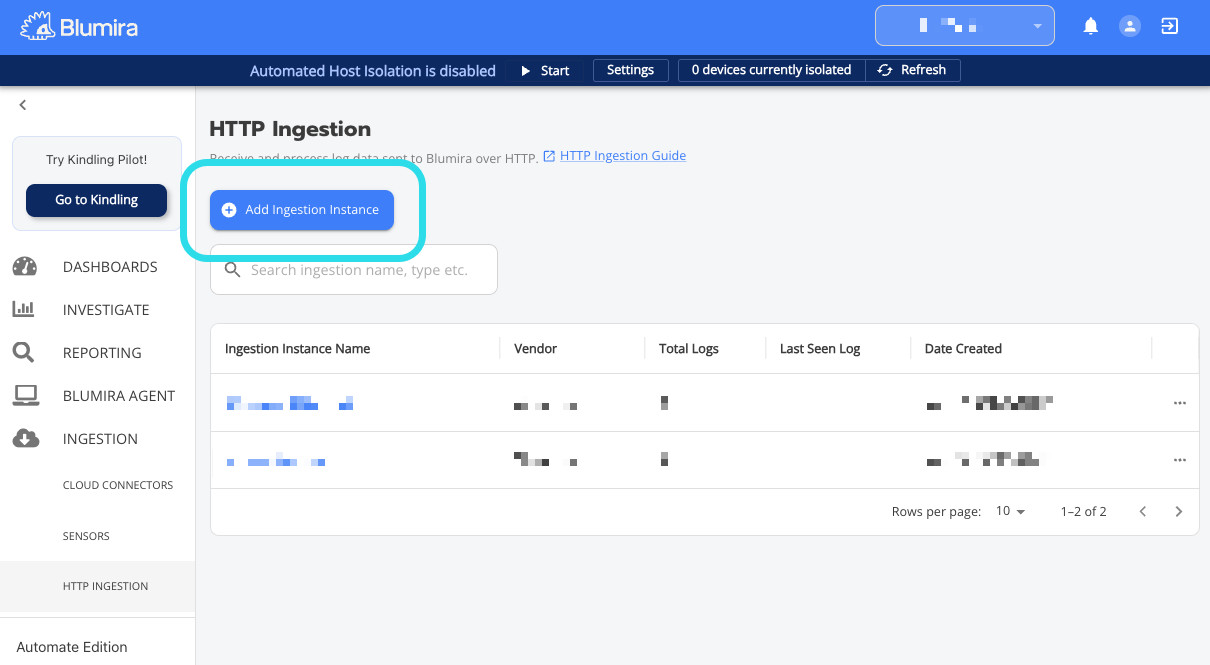
Add an instance in Blumira In the setup window:
From the Vendor dropdown, select Bitwarden.
(Optional) Edit the pre-populated Ingestion Instance Name.
(Optional) Enter a Description for any additional context.
Select Save.
Your Credentials will be displayed, showing an HTTP Event Collector URL and HTTP Event Collector Token. Both are needed to complete the next section.
noteThe HTTP Event Collector Token will only be displayed once. Either copy and save this value to a secure location now, or keep the window open in a separate browser tab while you complete the Bitwarden side of setup.

Once you have your HTTP Event Collector URL and HTTP Event Collector Token, provide that information in your Bitwarden organization to complete setup:
Log in to the Bitwarden web app and open the Admin Console.
In the Admin Console, go to Integrations → Event management.
Find the Blumira card and select Connect:
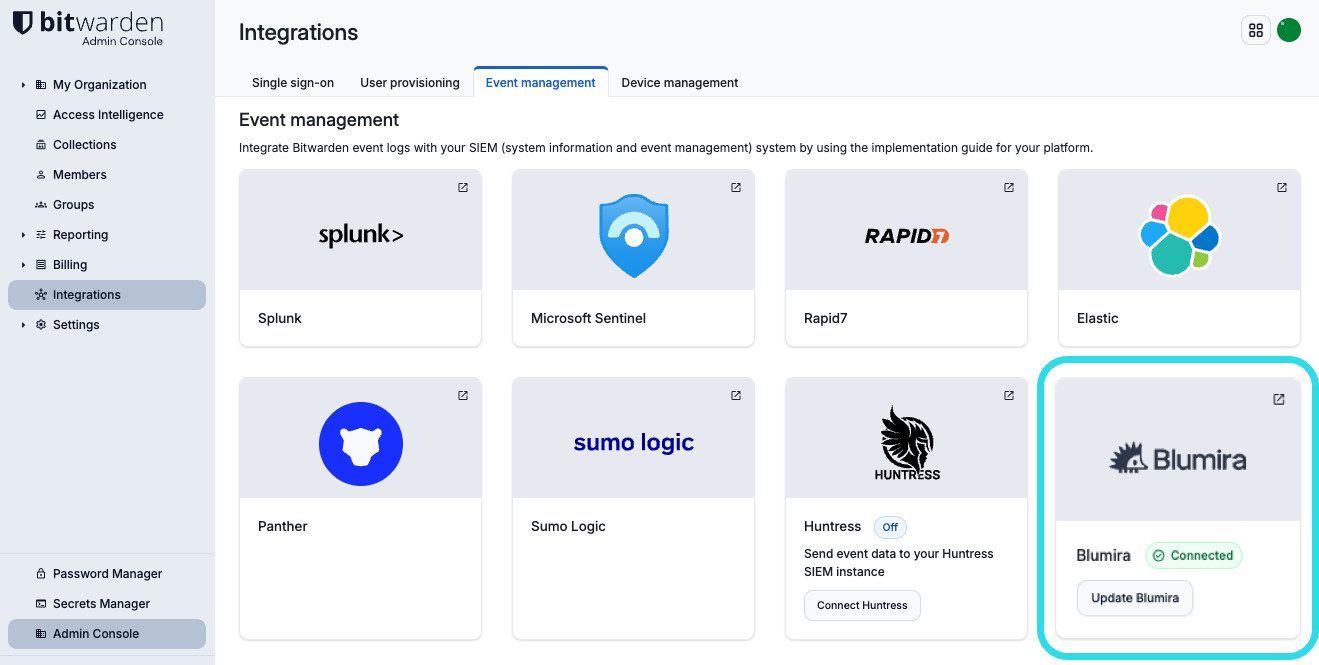
Connect to Blumira from Bitwarden Enter your HTTP Event Collector URL and HTTP Event Collector Token.
Select Save.

Learn more about what events are surfaced by Bitwarden.
Learn more about managing HTTP Ingestion in Blumira.