Autofill Passkeys
note
Bitwarden offers three passkey features:
Save and autofill passkeys for other services from your Bitwarden vault.
Use passkeys to log in and unlock your Bitwarden account.*
Use passkeys for 2FA to protect your Bitwarden account.*
* Some authenticators, notably Windows Hello, will not allow you to use a passkey for both login and 2FA.
Passkeys are a secure alternative to traditional passwords that let you log in to apps and websites without entering a password. Developed with the standards set by the FIDO Alliance, passkeys bypass vulnerabilities that come with standard passwords, like phishing.
Save passkeys in your Bitwarden vault and use the browser extension or mobile apps to autofill them across the apps and websites you use every day. Stored passkeys are protected with Bitwarden's trusted end-to-end encryption.
What are passkeys?
Passkeys are a replacement for passwords that provide fast, easy, and secure sign-ins to websites and apps. Passkeys are a discoverable FIDO credential that can be synced to allow secure passwordless sign-ins across devices or dedicated to a single piece of hardware as a device-bound passkey.
Apps and services can request that passkeys created with them are verified with a PIN, password, pattern, or biometric factor when you save or access them.
Types of passkey
Passkeys are stored and invoked via the Bitwarden browser extension and mobile apps. Discoverable passkeys and non-discoverable FIDO2 credentials can be stored in Bitwarden and used to log in to websites with passkey capabilities.
Save and autofill passkeys with Bitwarden
Storing and using passkeys is available with the Bitwarden browser extension and mobile apps.
note
The browser extension will not offer to save or use a passkey for any domain included in the excluded domains list.
Allow passkeys with the browser extension
First, open the Bitwarden browser extension and go to Settings → Notifications. Verify that the Ask to save and use passkeys option is checked.
If there are specific sites you do not wish to use Bitwarden for passkeys with, set excluded domains.
Create a passkey
When creating a new passkey on a website or app, the browser extension will prompt you to store the passkey:

note
Select Use your device or hardware key if you do not wish to store the passkey in Bitwarden.
Only one passkey can be saved per login item. If a passkey already exists for a service, overwrite the existing passkey or select the Add icon to create a new login item to store an additional passkey:

Sign in using a passkey stored in Bitwarden
First, confirm that the Ask to save and use passkeys extension setting is turned on. Then start the passkey login on the website. From the window that appears, select your saved passkey:

Alternatively, the inline autofill menu can also be used to authenticate with passkeys.
note
If you previously selected Use your device or hardware key, Bitwarden will not offer to enter or save a passkey. If you clicked this by accident or change your mind, remove the website from blocked domains. The next time you go to that service's login screen, Bitwarden will ask to save your passkey.


View passkeys in Bitwarden
Saved passkeys can be accessed from any Bitwarden app. Within the login item, the Passkey field displays the date and time that the passkey was created:

note
If master password re-prompt is used on the login item, you're required to re-enter your master password to access the passkey.
Delete passkeys
To delete a passkey from a vault item:
Open the item Edit screen from the Password Manager web app, browser extension, or desktop app.
Select the Delete icon for the Passkey field:
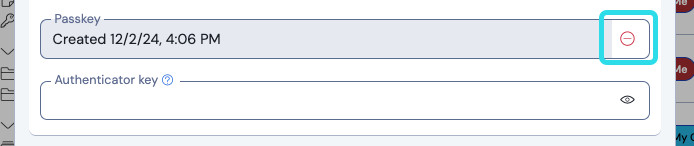
Delete a passkey

Export and import passkeys
Passkeys are included in JSON exports generated by Bitwarden and, once exported, can be imported to a Bitwarden account.