Provider Portal Quick Start
tip
Interested in becoming a Provider? To get started, we ask that:
Your business has an active Enterprise organization.
Your business has a client ready to be onboarded under your Provider.
Why Bitwarden Providers?
Managed service providers (MSPs) often need a way to quickly create and easily administer Bitwarden organizations on behalf of business customers. Providers are administration entities that allow those businesses to create and manage client organizations through the Provider Portal. With the Provider Portal:
View all clients under MSP management, onboard new and existing clients, access client organizations' collections, and administer services for teams and enterprise organizations.
Add internal staff as members, assign proper user roles, and delegate administrative duties.
View time-stamped actions made by users in the Provider Portal, including creation of new client organizations, invitation of new provider users, and when provider users access client organizations.
The Provider Portal is an all-in-one management experience that enables Providers to manage customers’ Bitwarden organizations at scale. The Provider Portal streamlines administration tasks by centralizing a dedicated space to access and support each client, or to create a new one:

Start a Provider
Contact us to sign up for the Provider program. After you register, a member of the Bitwarden team will contact you and issue an invitation to start a Provider:

Selecting the Setup Provider Now button will prompt you to log in to Bitwarden and fill out some Provider details.
Onboard users
As the creator of the Provider, you will be automatically given Provider admin status, allowing you to fully manage all aspects of the Provider and all client organizations. Bitwarden strongly recommends that you provision a second Provider admin for failover purposes.
Now, begin adding your employees as service users, which will allow them to administer all client organizations and create new ones or manage the Provider itself:
Invite Users. From the Provider Portal Manage → Members tab, invite users as service users (or invite additional Provider admins):
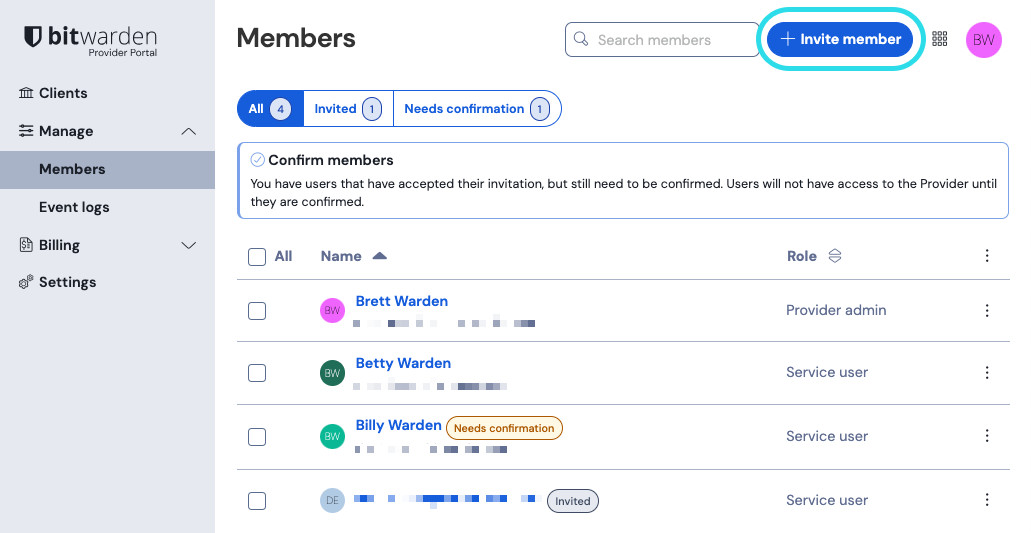
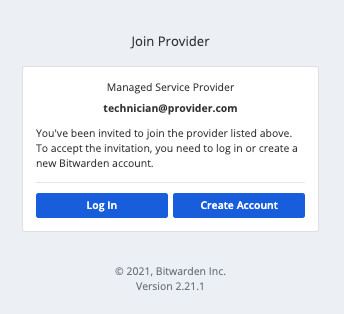
Add a provider user Instruct users to accept invites. Invited users will receive an email from Bitwarden inviting them to join the provider. Inform users that they should expect an invitation and that they will need to Log In with an existing Bitwarden account or Create Account to proceed:
Provider Invitation Confirm accepted invitations. To complete the secure onboarding of your provider users, confirm accepted invitations from the Provider Portal People tab:
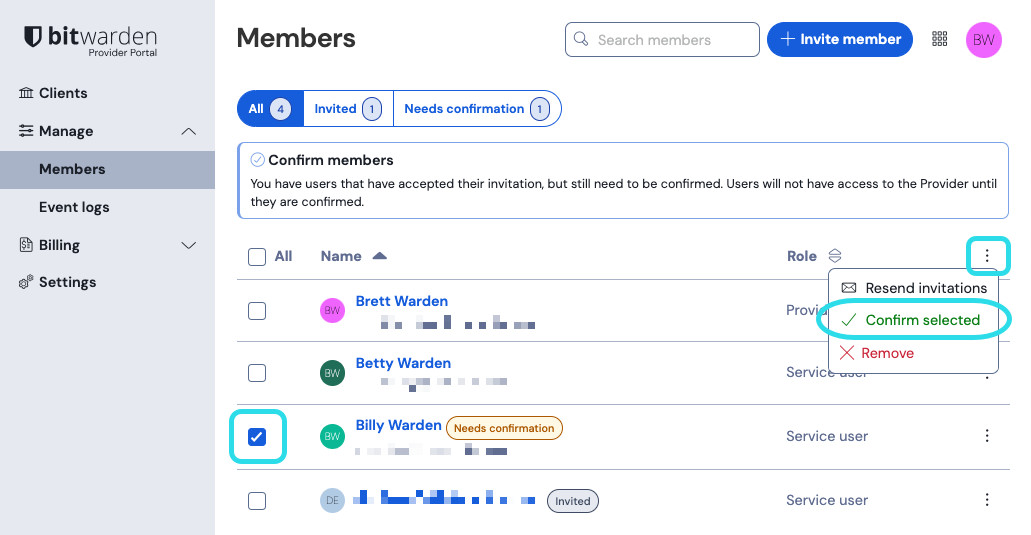
Confirm invited provider user


With an assembled team of service users, you're ready to start setting up client organizations.
Client organizations
Client organizations are any organization that is attached to or administered by a Provider. To your customers, there's no difference between a "client" organization and a "regular" organization except for who is conducting administration.
Organizations relate Bitwarden users and vault items together for secure sharing of logins, cards, notes, and identities. Organizations have a view, the Admin Console, where Provider service users can manage the organization's collections, manage members and groups, run reporting, import data, and configure organization settings:

Members of a client organization (your customer's end-users) will find shared items in their Vaults view alongside individually-owned items, as well as several methods for filtering the item list to only organization items or items in particular collections:

Create a client organization
To create a new client organization, you must be a Provider Admin. Navigate to the Clients tab of the Provider Portal and select the Add button → New Client:

Add an existing organization
To add an existing organization, you must be an active provider user and the owner of the organization you wish to add.
note
A service user can add members to client organizations, or add client organizations to the provider, as long as the number of users added is within the provider's seat minimum. Only provider admins can increase the seat minimum.
Navigate to the Clients tab of the Provider Portal and select the New button → Existing organization:
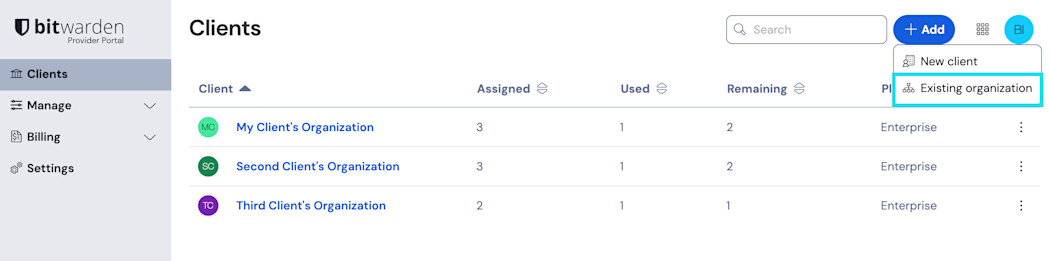
Admin Console add Existing Organization The Add existing organization dialogue will appear. Select the organization you wish to add:
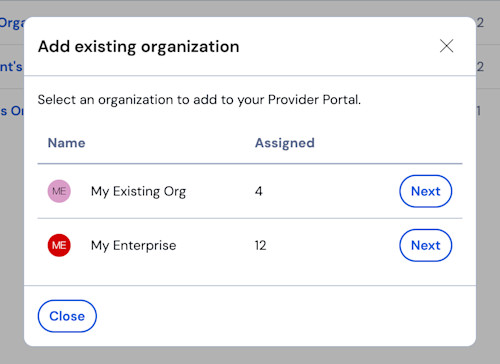
Select Existing Organization You will be prompted to confirm the subscription and billing changes to your provider subscription. Once complete, select Add organization.


Setup the client organization
With your newly-created client organization, start building the perfect solution for your customer. Exact setup will be different for each client organization based on your customers' needs, but will typically involve:
Create collections. A good first step is to create a set of collections, which provide an organizing structure for the vault items you will add to the vault in the next step.
Common collections patterns include Collections by Department (for example, users in the client's Marketing Team are assigned to a Marketing collection) or Collections by Function (for example, users from the client's Marketing Team are assigned to a Social Media collection):
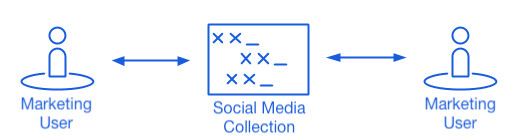
Collections Import data. Once the structure of how you will store vault items is in place, you can begin importing data to the organization.
note
Note that, as a provider user, you will not be able to directly view, create, or manage individual items.
Configure enterprise policies. Before beginning the user management portion of setup, configure enterprise policies in order to set rules-of-use for things such as master password complexity, use of two-step login, and admin password reset.
note
Enterprise policies are only available to Enterprise organizations.
Setup login with SSO. If your customer uses single sign-on (SSO) to authenticate with other applications, connect Bitwarden with their IdP to allow authentication with Bitwarden using end-users' SSO credentials.
Create user groups. For teams and enterprise organizations, create a set of groups for scalable permissions assignment. When you start adding users, add them to groups to have each user automatically inherit the group's configured permissions (for example, access to which collections).
One common group-collection pattern is to create Groups by Department and Collections by Function, for example:
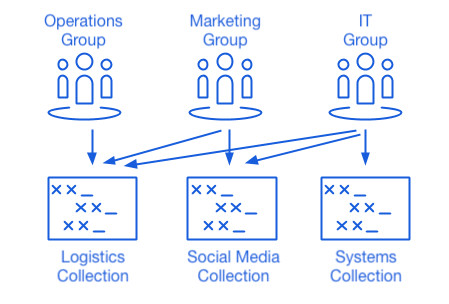
Collections


Invite client users
With the infrastructure for secure and scalable sharing of credentials in place, you can begin inviting users to the organization. Onboarding users to Bitwarden can be accomplished in three ways, depending on the size of your customer:
For smaller customers, you can send email invitations to users from the Admin Console Members view:
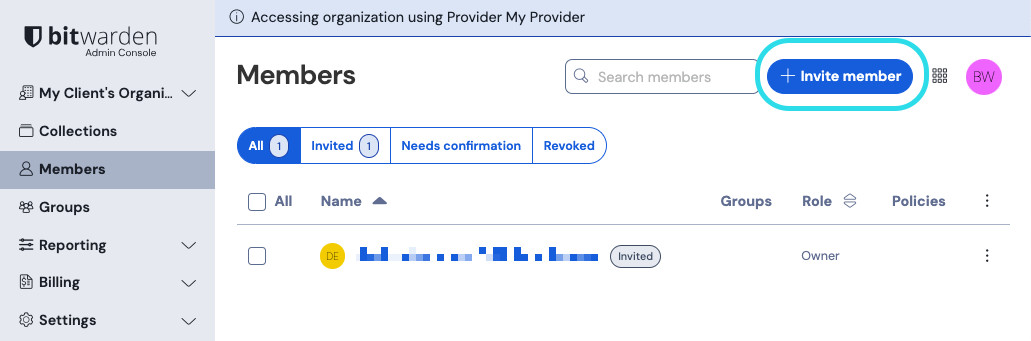
Invite members as a provider For larger customers who leverage an IdP such as Azure AD, Okta, OneLogin, or JumpCloud, use SCIM to automatically provision users.
For larger customers who leverage a directory service (Active Directory, LDAP, Okta, and more), use Directory Connector to sync organization users from the source directory and automatically issue invitations.

Regardless of whether you have invited users from the organization vault, using SCIM, or using Directory Connector, the same three-step process (Invite → Accept → Confirm) that you followed when onboarding provider users will apply here as well.
Managing self-hosted organizations
MSPs can provide admin support for Bitwarden self-hosted instances as well. Provider Portal access to managed customers is currently available for cloud-hosted environments only. To provide administrative services for a self-hosted instance, an additional service seat will need to be purchased to manage the self-hosted instance.
Enabling the self-hosted instances
Create a new Bitwarden user as a service account. This user will be granted access to manage a customer as an owner during the initial installation.
note
If your client organizations are hosted on the same server, this service account could be a single user that is granted access to all organizations. Otherwise, create a separate service account for each customer or server.
Save the newly created user's credentials in your internal Bitwarden vault.
Next, access the Provider Portal located on the main navigation bar. Create a new enterprise organization from the Provider Portal.note
The purpose of this step is to save the credentials, you are not required to invite the user to your organization.
During the creation of the enterprise organization, add the service user account that was created in step 1.
Access the client via the Provider Portal to download the organization license.
Deploy the Bitwarden self-hosted instance and apply the organization license.
Promote a user as the new owner at your managed customer.
note
Optionally, once the new user has been promoted to manager of the customer organization, your service account user can be downgraded to a custom admin role.