Send Privacy
Protect the contents of your Send by configuring a password for access so unintended recipients can't see the information, and/or to hide your email from recipients. For text Sends, you can also optionally require recipients to toggle visibility to prevent exposure to unintentional onlookers.
The Password, Hide Email, and Hide Text options can be set while creating a new Send, or from the Edit Send view at any time prior to the Send's deletion.
Email-verified recipients
Paid Bitwarden plan users (Premium, Families, Teams, Enterprise) can require email verification to access a Send. When creating the Send, specify one or more recipient email addresses. After accessing the Send link, recipients must enter their email address. If it matches an address you specified, a verification code is emailed to the recipient. To create an email-verified Send:
Select the Specific people option in the Who can view menu. Then, add the intended recipients to the Emails field. Complete the Send setup and share the send link with intended recipients.
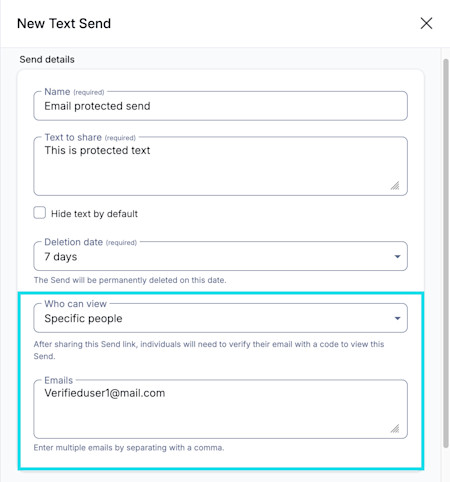
Verified user Send Recipients who access the Send link will be asked to enter their email address. A verification code will be sent to that users email address. Enter the verification code to view the content of the send.
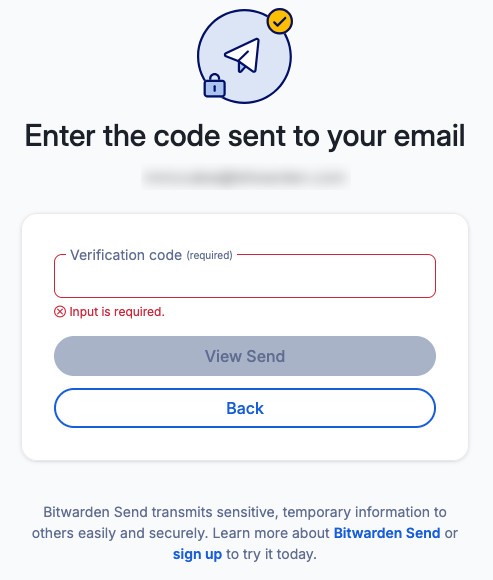
Enter Send verification code


Send passwords
For any Send, you can set a password that recipients will be required to enter in order to access it. Password-protecting a Send is a good way to ensure the information in it is not exposed to unintended recipients:

Once you password-protect a Send, you won't be able to view the configured password again, however you can change or remove it at any time.
Change Send passwords
You can change a Send's password at any time from the Edit Send view. Changing a Send's password will not require you to enter the previous password. When changing a Send's password, the Password field will change to New Password.
Remove Send passwords
You can remove a Send's password at any time using the Remove Password menu option. Removing a Send's password will not require you to enter the previous password:

Hide email
By default, Sends show the sender's email address to recipients. To remove your email address when creating the Send:
Select Options.
Check Hide my email address from recipients.
Recipients can still validate the trustworthiness of Sends by cross-referencing the Send link with their sender. Hidden-email send objects will issue a warning to recipients encouraging them to do so:

tip
For enterprise organizations, the availability of this option can be set using an enterprise policy.
Hide text
For text Sends, toggle the When accessing the Send, hide the text by default option to require recipients to Toggle Visibility in order to see its contents. Hiding the text is a good way to ensure the information in it is not exposed to unintentional onlookers:
