Okta OIDC
This article contains Okta-specific help for configuring login with SSO via OpenID Connect (OIDC). For help configuring login with SSO for another OIDC IdP, or for configuring Okta via SAML 2.0, see OIDC Configuration or Okta SAML Implementation.
Configuration involves working simultaneously within the Bitwarden web app and the Okta Admin Portal. As you proceed, we recommend having both readily available and completing steps in the order they are documented.
Open SSO in the web vault
Log in to the Bitwarden web app and open the Admin Console using the product switcher:
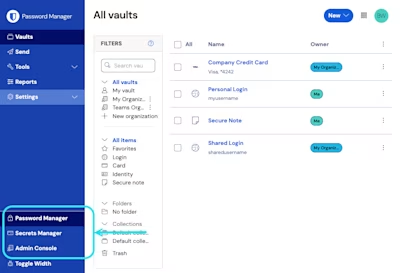
Select Settings → Single sign-on from the navigation:

If you haven't already, create a unique SSO identifier for your organization. Otherwise, you don't need to edit anything on this screen yet, but keep it open for easy reference.
tip
There are alternative Member decryption options. Learn how to get started using SSO with trusted devices or Key Connector.
Create an Okta app
In the Okta Admin Portal, select Applications → Applications from the navigation. On the Applications screen, select the Create App Integration button. For Sign-on method, select OIDC - OpenID Connect. For Application type, select Web Application:

On the New Web App Integration screen, configure the following fields:
Field | Description |
|---|---|
App integration name | Give the app a Bitwarden-specific name. |
Grant type | Enable the following grant types: |
Sign-in redirect URIs | Set this field to your Callback Path, which can be retrieved from the Bitwarden SSO Configuration screen. |
Sign-out redirect URIs | Set this field to your Signed Out Callback Path, which can be retrieved from the Bitwarden SSO Configuration screen. |
Assignments | Use this field to designate whether all or only select groups will be able to use Bitwarden Login with SSO. |
Once configured, select the Next button.
Get client credentials
On the Application screen, copy the Client ID and Client secret for the newly created Okta app:

You will need to use both values during a later step.
Select Security → API from the navigation. From the Authorization Servers list, select the server you would like to use for this implementation. On the Settings tab for the server, copy the Issuer and Metadata URI values:

You will need to use both values during the next step.
Back to the web app
At this point, you have configured everything you need within the context of the Okta Admin Portal. Return to the Bitwarden web app to configure the following fields:
Field | Description |
|---|---|
Authority | Enter the retrieved Issuer URI for your Authorization Server. |
Client ID | Enter the retrieved Client ID for your Okta app. |
Client Secret | Enter the retrieved Client secret for your Okta app. |
Metadata Address | Enter the retrieved Metadata URI for your Authorization Server. |
OIDC Redirect Behavior | Select Redirect GET. Okta currently does not support Form POST. |
Get Claims From User Info Endpoint | Enable this option if you receive URL too long errors (HTTP 414), truncated URLS, and/or failures during SSO. |
Additional/Custom Scopes | Define custom scopes to be added to the request (comma-delimited). |
Additional/Custom User ID Claim Types | Define custom claim type keys for user identification (comma-delimited). When defined, custom claim types are searched for before falling back on standard types. |
Additional/Custom Email Claim Types | Define custom claim type keys for users' email addresses (comma-delimited). When defined, custom claim types are searched for before falling back on standard types. |
Additional/Custom Name Claim Types | Define custom claim type keys for users' full names or display names (comma-delimited). When defined, custom claim types are searched for before falling back on standard types. |
Requested Authentication Context Class Reference values | Define Authentication Context Class Reference identifiers ( |
Expected "acr" Claim Value in Response | Define the |
When you are done configuring these fields, Save your work.
tip
You can require users to log in with SSO by activating the single sign-on authentication policy. Please note, this will require activating the single organization policy as well. Learn more.
Test the configuration
Once your configuration is complete, test it by navigating to https://vault.bitwarden.com, entering your email address and selecting the Use single sign-on button:
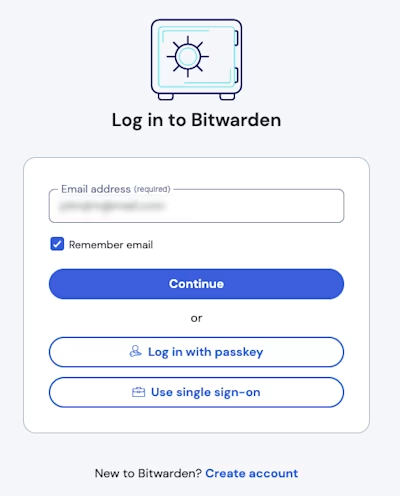
Enter the configured organization identifier and select Log In. If your implementation is successfully configured, you'll be redirected to the Okta login screen:

After you authenticate with your Okta credentials, enter your Bitwarden master password to decrypt your vault!
note
Bitwarden does not support unsolicited responses, so initiating login from your IdP will result in an error. The SSO login flow must be initiated from Bitwarden. Okta administrators can create an Okta Bookmark App that will link directly to the Bitwarden web vault login page.
As an admin, navigate to the Applications drop down located on the main navigation bar and select Applications.
Click Browse App Catalog.
Search for Bookmark App and click Add Integration.
Add the following settings to the application:
Give the application a name such as Bitwarden Login.
In the URL field, provide the URL to your Bitwarden client such as
https://vault.bitwarden.com/#/loginoryour-self-hostedURL.com.
Select Done and return to the applications dashboard and edit the newly created app.
Assign people and groups to the application. You may also assign a logo to the application for end user recognition. The Bitwarden logo can be obtained here.
Once this process has been completed, assigned people and groups will have a Bitwarden bookmark application on their Okta dashboard that will link them directly to the Bitwarden web vault login page.