Jenkins Integration
Jenkins is an open source automation server that automates building, testing, and deploying software. Use the Bitwarden Secrets Manager CLI to inject secrets into Jenkins CI/CD Pipelines.
Save an access token
To get started, create a token that will be used to authenticate with the Bitwarden Secrets Manager and retrieve secrets. To save an access token as a Jenkins credential:
In Jenkins, navigate to the Settings → Credentials page.
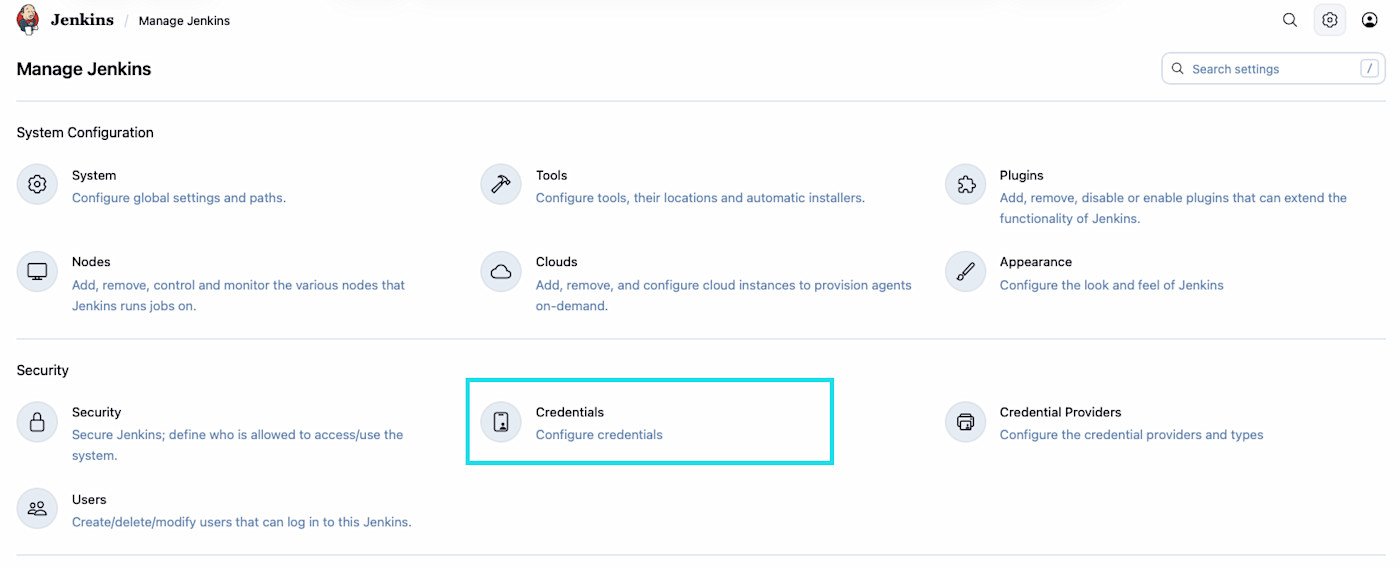
Setting credentials Select the desired credential store.
Select Add Credentials.
Click the Kind drop down menu and select Secret text.
Give the credential an appropriate name. Next, we will prepare the
bitwarden-access-token.In a new tab, open the Secrets Manager web app and create an access token.
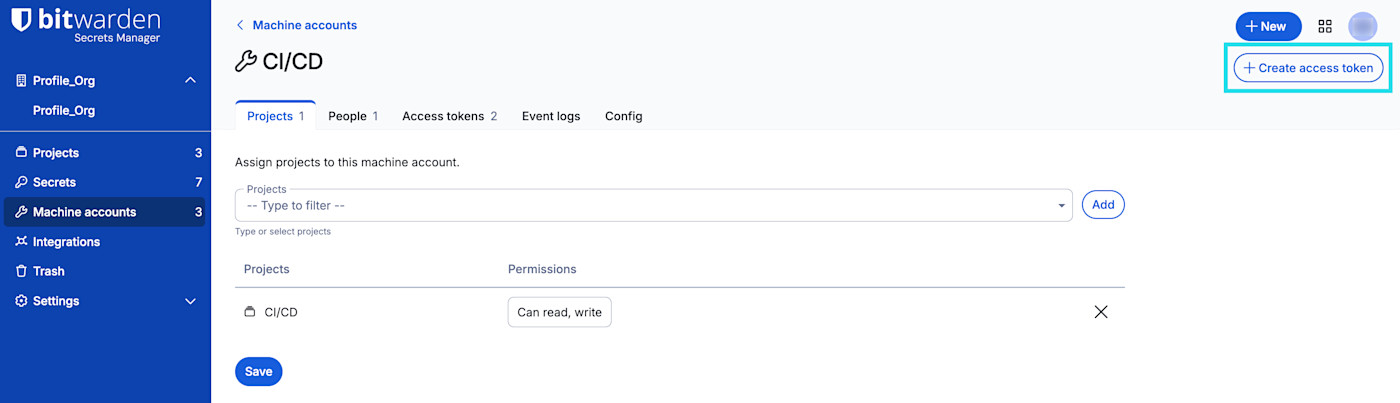
Create access token Return to Jenkins and paste the newly-created access token into the Secret field.
Once complete, select Create.


Add to your Jenkins Pipeline
Next, a Jenkins Pipeline needs to be created. The following section features an example Pipeline.
Create a new Jenkins Pipeline by selecting New Item on the left-hand navigation.
Enter a name for the new item. Next, select the Pipeline item type and then OK when complete.
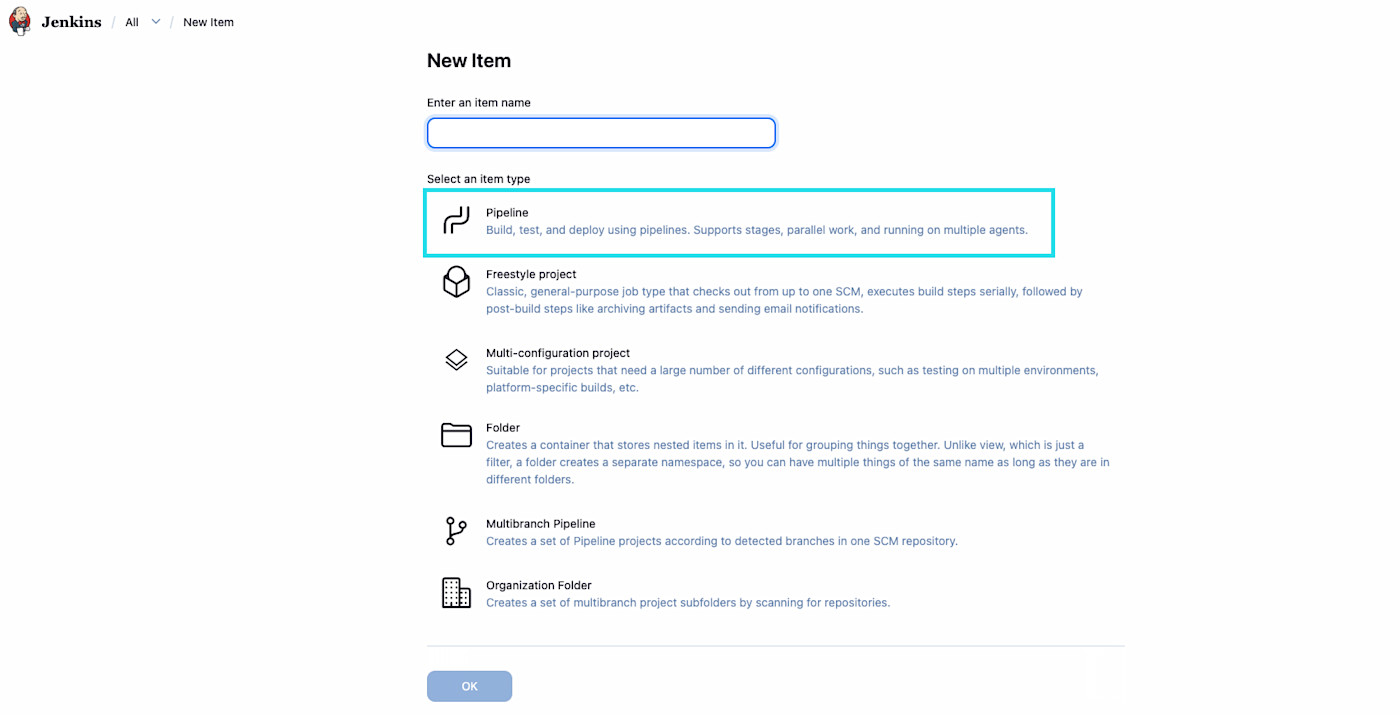
New Pipeline On the following screen, configure your desired settings and triggers. In the Pipeline section, include the following contents:

Java pipeline {
agent any
stages {
stage('Build Rust Project with Secrets from Bitwarden') {
steps {
withCredentials([string(credentialsId: 'bitwarden-access-token',
variable: 'BWS_ACCESS_TOKEN')]) {
sh '''
export PATH=$PATH:/usr/local/bin # ensure bws is in PATH
bws run -- <command needing secrets here>
'''
}
}
}
}
}note
Replace <command_needing_secrets_here> with the command that requires access to secrets manager.
Run the CI/CD Pipeline
On the left, select Build Now → Pipelines and select Run Pipeline located on the top-right of the page. Select Run Pipeline on the page to run the newly-created Pipeline.