Enterprise Policies
Enterprise policies allow Enterprise organizations to enforce security rules and default settings for all members, like mandating the use of a two-step login.
warning
We recommend setting enterprise policies prior to inviting users to your organization. Some policies will revoke non-compliant users when turned on, and some are not retroactively enforceable.
Set enterprise policies
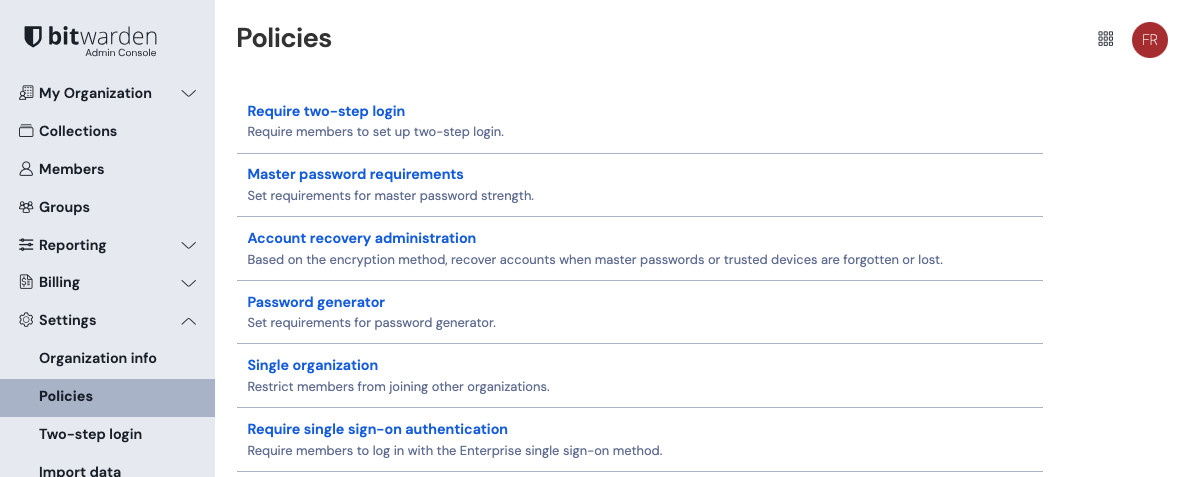
Organization owners and admins can apply enterprise policies. To update a policy:
Within the Bitwarden web app, open the Admin Console.
Select Settings.
Select Policies.
Select the name of the policy you want to change:
Set Enterprise policies Check or uncheck Turn on.
(Optional) If more options appear, configure them.
Select Save.

Available policies
Single organization
Turn on the Single organization policy to restrict non-owner/non-admin members of your organization from being able to join other organizations or from creating other organizations. This policy is enforced even for users who have only accepted invitation to your organization, however this policy is not enforced for owners and admins.
warning
Organization members who are not owners or admins and do not comply with this policy will have access revoked when you activate this policy. Users who have access revoked as a result of this policy will be notified via email, and must take steps to become compliant before their access can be restored.
The Single organization policy must be turned on before activating the following policies:
If you are unable to turn off the Single organization policy, verify that all of the above policies are deactivated, that you don't have a claimed domain, and then try again.
Centralize organization ownership
Turn on the Centralize organization ownership policy to prevent private ownership of vault items. This adds My Items, an organization-owned location that can only be accessed by that member. My Items replaces the individual's My vault, shifting ownership from the user to the organization. While the member is active in the organization, administrators are unable to edit or export the user's My Items.
note
This policy only affects members who are not organization owners or admins. Organization owners and admins can continue using My vault.
Once turned on, all new saved items are placed in that member’s My Items by default. When on the Add Item screen, a banner informs users that a policy affects item ownership options.
After a member is removed, the data in that member’s My Items stays with the organization. Owners, admins, and some custom role users can assign other members access to the removed members’ My Items.
Prompt users to move items to the organization
Turn on this sub-option of the Centralize organization ownership policy to prompt users who have items currently stored in My Vault to transfer all such items to organization ownership under the My items location. This transfer procedure is a quick, one-click process.
Members can accept or decline the prompt. Accepting transfers all individually-owned items to organization ownership, and declining will immediately revoke that member's access to the organization to allow them time to filter which items should be transferred and which should not. Events are logged for either scenario.
Master password requirements
Turn on the Master password requirements policy to enforce a configurable set of minimum requirements for users' master password strength. Organizations can enforce:
Minimum master password complexity
Minimum master password length
Types of characters required
Password complexity is calculated on a scale from 0 (weak) to 4 (strong). Bitwarden calculates password complexity using the zxcvbn library.
Use the Require existing members to change their passwords option to require existing, non-compliant organization members, regardless of role, to update their master password during their next login. Users who create a new account from the organization invite will be prompted to create a master password that meets your requirements.
Account recovery administration
Turn on the Account recovery administration policy to allow owners and admins to help members regain access to their account. With this policy, owners and admins can send members enrolled in account recovery a link to reset their master password. By default, users must self-enroll in account recovery to be eligible.
To simplify account recovery enrollment, check Require new members to be enrolled automatically when activating the policy. This enrolls new members when their invitation to the organization is accepted and prevents them from withdrawing from account recovery. Current organization members are not retroactively added, so they still need to self-enroll.
The Account recovery administration policy is required for your organization to use SSO with trusted devices.
note
The Single organization policy must be turned on before activating this policy.
Require single sign-on authentication
Turn on the Require single sign-on authentication policy to require non-owner/non-admin users to log in with SSO. If you're self-hosting, you can enforce this policy for owners and admins using an environment variable. For more information, see Using Login with SSO. This policy is not enforced for owners and admins.
Members of organizations using this policy will not be able to log in with passkeys.
note
The Single organization policy must be turned on before activating this policy.
Automatic login with SSO
Turn on the Automatically login with SSO policy to allow login forms to be filled and submitted automatically when accessing non-SSO apps from your identity provider. In order to enable this setting:
To enable the Automatic login with SSO policy, check the Turn on box, and enter your Identity provider host URL(s). The URL should include
protocol://domain.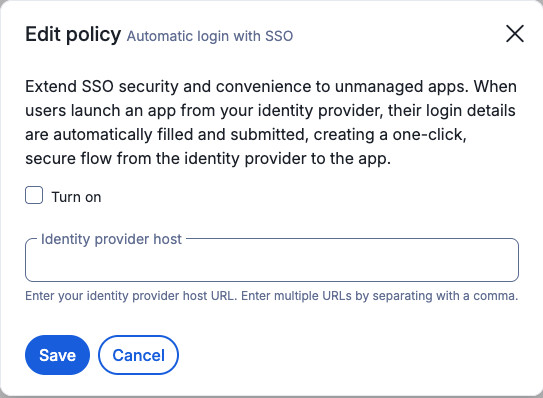
Automatically log in users for allowed applications As an Administrator on your IdP, add an application, or app shortcut to your end-user dashboard containing the destination URL with the added parameter
/#autosubmit=1Once the application has been saved, users may select the application from the IdP dashboard and Bitwarden will autofill and login to the application.

note
Automatic login with SSO will autofill data based on the users current active account on the Bitwarden browser extension. Additionally, the data autofilled will be the most recent credential that user used associated with the target application's URL.
Require two-step login
Turn on the Require two-step login policy to require members to use any two-step login method to access their vaults. If you are using an SSO or identity provider's 2FA functionality, you don't need to enable this policy. This policy is enforced even for users who have only accepted invitation to your organization.
warning
Organization members who are not owners or admins and do not comply with this policy will have access revoked when you activate this policy. Users who have access revoked as a result of this policy will be notified via email, and must take steps to become compliant before their access can be restored.
Block account creation for claimed domains
note
A domain must be claimed before you can turn on this policy.
Turn on the Block account creation for claimed domains policy to prevent people with email addresses that match your claimed domain from creating a Bitwarden account outside of the organization. When this policy is on, email addresses that match your claimed domain can only be used to create Bitwarden accounts by being invited to join your organization or when JIT provisioning using SSO.
Session timeout
Turn on the Session timeout policy to set limits and control members' session timeout behavior. When this policy is turned on and users edit their account's Session timeout settings, the Timeout options will not exceed the maximum you picked for the organization and some, like On browser restart and Never, will not be available. This policy does not affect organization owners.
You can customize two options:
From the Maximum allowed timeout dropdown menu, set a limit to how long sessions can remain active:
Immediately: When the user stops interacting with Bitwarden
Custom: After the amount of time entered in Hours and Minutes
On system lock: When the device is locked or the screensaver activates (browser extension and desktop app only)
On app restart: When the Bitwarden app is closed and reopened
Never: No maximum session duration is set.
warning
The Never timeout option stores your encryption key unencrypted on your device, which may hinder security. To keep your data secure, we strongly recommend choosing a different option.
From the Session timeout action dropdown menu, choose what happens after a session ends. You can specify Lock or Log out or select User preference to let members choose in their account settings.
tip
If your organization uses trusted devices, consider selecting Log Out. After a session times out, this allows members to access their vault without a master password via SSO on a trusted device.
note
The Single organization policy must be turned on before activating this policy.
Remove Unlock with PIN
Turn on the Remove Unlock with PIN policy to prohibit members from configuring or using unlock with PIN on web apps, browser extensions, and desktop apps. This policy applies to all organization members when turned on, including admins and owners.
note
Support for enforcing this policy on mobile apps is planned for a future release.
Members who are using unlock with PIN prior to the policy will have it enforced on their next log in, meaning if they have an already logged-in session they will still see the option in the UI and be able to unlock with PIN until they log out or turn off the unlock with PIN option in the client.
Password generator
Turn on the Password generator policy to enforce a configurable set of minimum requirements for any user-generated passwords for all members, regardless of role. Organizations can enforce:
Password, passphrase, or user preference
For passwords:
Minimum password length
Minimum number (0-9) count
Minimum special character (!@#$%^&*) count
Types of characters required
For passphrases:
Minimum number of words
Whether to capitalize
Whether to include numbers
warning
Existing non-compliant passwords will not be changed when this policy is turned on, nor will the items be removed from the organization. When changing or generating a password after this policy is turn on, configured policy rules will be enforced.
A banner is displayed to users on the password generator screen to indicate that a policy is affecting their generator settings.
Default URI match detection
Turn on the Default URI match detection policy to set the default URI match detection for your members. This helps you configure autofill to best meet your organization's security and policy needs.
When turning on this policy, select your organization's Default URI match detection from the dropdown menu:
Base domain
Host
Exact
Never
note
Users not subject to this policy have two more options when setting their individual account's default match detection: Starts with and Regular expression. These options are not offered for an organization's default because they can match unintended pages and expose credentials.
Once the policy is activated, members cannot view or change their account's Default URI match detection in Settings → Autofill. They can, however, still choose a URI match for individual login items. This policy does not affect organization owners or admins.
note
The Single organization policy must be turned on before activating this policy.
Activate autofill
Turn on the Activate auto-fill policy to automatically turn on the autofill on page load feature on the browser extension for all existing and new members of the organization. If activated, members will not have the ability to disable autofill on page load.
Send options
Turn on the Send options policy to allow owners and admins to specify options for creating and editing Sends. This policy is not enforced for owners and admins. Options include:
Option | Description |
|---|---|
Do not allow users to hide their email address | Turning on this option removes the hide email option, meaning that all received Sends will include whom they are sent from. |
Remove Send
Turn on the Remove Send policy to prevent members who are not an owner or admin from creating or editing a Send using Bitwarden Send. Members subject to this policy will no longer have access to Send on their Bitwarden client. This policy is not enforced for owners and admins.
A banner is displayed to users in the Send view and on opening any existing Send to indicate that a policy is restricting them to only deleting Sends.
Remove card item type
Turn on the Remove card item type policy will prevent members from creating or importing credit cards to organization and individual vaults.
Users who are members of multiple organizations will still be able to use cards only in an organization that allows it, even if a different organization has activated this policy.
Existing cards will be automatically hidden, however the data will not be deleted and cards will re-appear should administrators disable the policy.
Remove Free Bitwarden Families sponsorship
Turn on the Remove Free Bitwarden Families sponsorship policy to prevent members of your organization from having the option to redeem a free Families plan through your organization.
Users who have redeemed a sponsored Families organization prior to the policy being activated will continue to have their organization sponsored until the end of the current billing cycle. Their stored payment method will be charged for the organization when the next billing cycle begins.
Remove export
Turn on the Remove export policy to prohibit non-owner and non-admin members of your organization from exporting their individual vault data. This policy is not enforced for owners and admins.
In the web app and CLI, a message is displayed to users indicating that a policy is affecting their options. In other clients, the option will simply be disabled:

Automatic user confirmation
note
In order to gain access to this policy, Bitwarden support will need to toggle it on for you. The first step is to contact us.
Turn on the Automatic user confirmation policy to automatically confirm members that accept invitations to join your organization. Before using automatic confirmation, check your organization's eligibility and learn about the setup process.