Browser Extension Vault Health Reports
Run vault health reports in the Bitwarden browser extension to find and fix any weak, reused, or exposed logins stored in your Bitwarden vault. The health reports available in the browser extension check for three types of at-risk passwords:
Exposed passwords have been found in known data breaches.
Weak passwords can be easily guessed by hackers or automated tools.
Reused passwords are saved in your vault for two or more different login items.
If you’re a member of a Teams or Enterprise organization, this option will not appear. Instead, learn how Access Intelligence can help identify at-risk credentials across your organization and notify members to update their passwords.
Scan vault for password health
Accounts with a Free, Premium, and Families subscription can view how many exposed, weak, and reused passwords are in their vault.
Use the Bitwarden web app to run additional vault health reports.
To learn how many passwords saved in your vault are at-risk:
Log in to the Bitwarden browser extension.
Select Health. If this your first time accessing the Health tab, select Scan my vault:
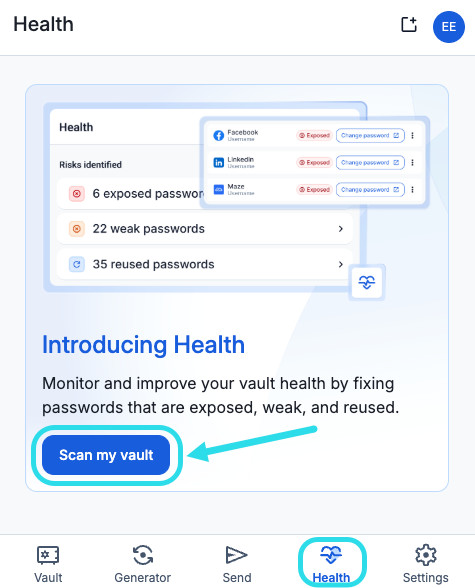
Health reports in browser extension The Health tab will display the total number of passwords in your vault that are exposed, weak, or reused:
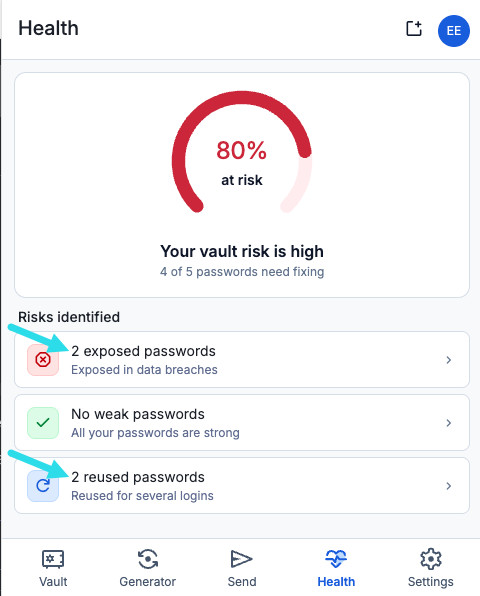
Risks identified in health scan


View at-risk passwords
If your account is on a Premium or Families subscription, you can review each health report to see which items, if any, need attention.
Free subscriptions can only view the total number of at-risk passwords in each report. To review which logins are flagged, upgrade to a Premium or Families subscription.
To review at-risk passwords:
From the Health tab, select a vault health report: exposed, weak, or reused.
Review the list of at-risk logins:
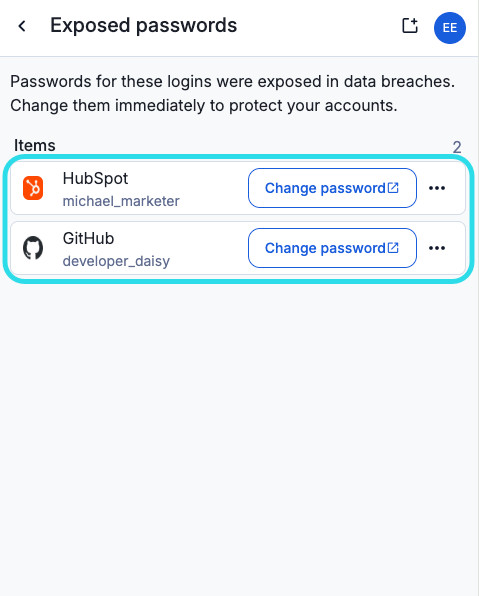
At-risk passwords in health reports (Optional) From this list, you can:
Select the item to open the View login screen, where you can edit the item.
If the login's website is saved as a URI, select Change password to open the website and update your credentials. Remember to update the login item in your vault with the new password.
Select the Options menu → Delete item to remove the login from your vault. Select Delete to confirm.
warningDeleting an item only removes it from your vault. It does not change the password on the actual account, so the login remains at-risk if it's still in use.
