Setup SSO with Trusted Devices
This document will walk you through adding SSO with trusted devices to your organization. You must be an organization owner or admin to complete these steps:
Log in to the Bitwarden web app and open the Admin Console using the product switcher:
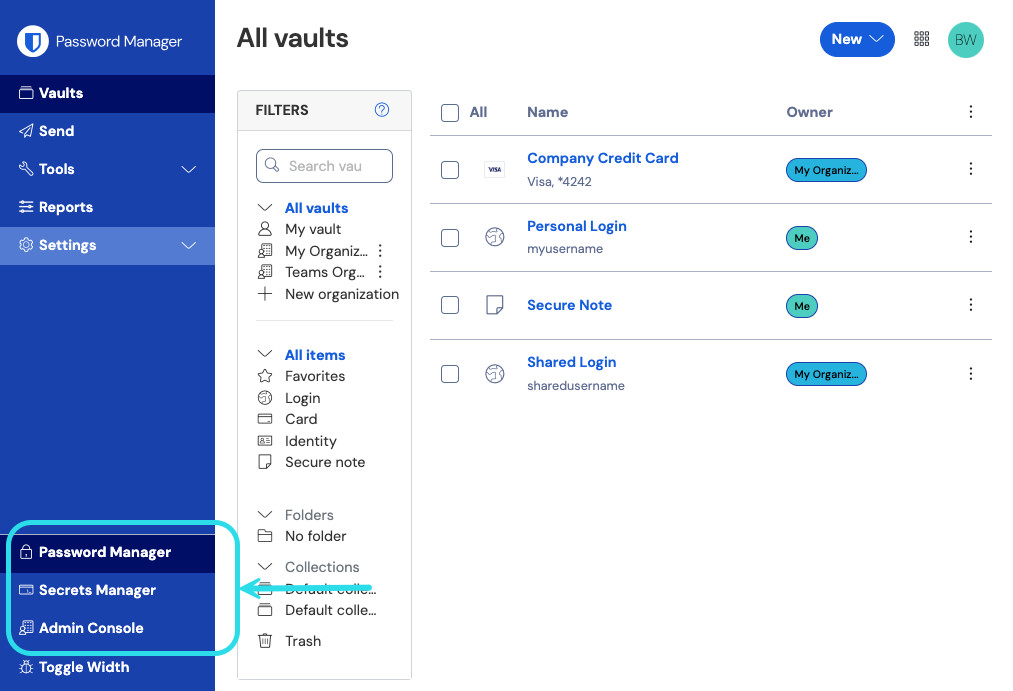
Product switcher Select Settings → Policies from the navigation.
On the Policies page, activate the following policies which are required for using trusted devices:
The Single organization policy.
The Require single sign-on authentication policy.
The Account recovery administration policy.
The Account recovery administration policy's Require new members to be enrolled automatically option.
note
If you do not activate these policies beforehand, they will be automatically activated when you activate the Trusted devices member decryption option. However, if any accounts do not have account recovery enabled, they will need to self-enroll before they can use admin approval for trusted devices. Users who enable account recovery must log in at least once post-account recovery to fully complete the account recovery workflow.
Select Settings > Single sign-on from the navigation. If you haven't setup SSO yet, follow one of our SAML 2.0 or OIDC implementation guides for help.
Select the Trusted devices option in the Member decryption options section.
Once activated, users can begin decrypting their vaults with trusted device.
When joining an organization that uses SSO with trusted devices, admins and owners will be prompted to create a master password for redundancy and failover purposes, however members with the user role will not be able to set a master password.
warning
Before migrating from SSO with trusted devices to another member decryption options, please note that:
When moving from SSO with trusted devices to master password decryption, any organization members without a master password will be prompted the next time they log in to create a master password.
Moving from SSO with trusted devices to Key Connector is not supported.