Enterprise Admin
Your biggest impact as an admin comes from making Bitwarden easy for others to adopt. This course covers setup, policy configuration, and onboarding strategies that turn password security into a daily habit for your company.
The first few steps in the document assume you're going to create an organization. If you're joining an existing organization, skip down to Or join an existing organization.
Start your free trial to discover how Bitwarden can strengthen your organization's security posture with zero-knowledge encryption and seamless deployment.
Start Enterprise TrialWatch Bitwarden experts demonstrate security configurations, manage user permissions, and showcase Enterprise features live. See what's possible and get your questions answered!
Join a sessionCheck out the full library of Bitwarden Brilliance sessions.
Watch the full playlistThis resource hub provides IT and security leaders with a proven path to password security success, offering a curated set of guides, checklists, resources, and milestones.
Visit the HubThis playbook provides IT administrators with a flexible roadmap for onboarding users to Bitwarden Password Manager across five key phases. While the phases are presented in sequence, they're not strictly linear. Many steps can happen in parallel based on your company's needs and timeline.
View the PlaybookThis comprehensive toolkit provides everything admins and IT teams need to build excitement, communicate password security benefits, and turn your end users into security champions. Whether you're rolling out to a small team or enterprise-wide deployment, these resources support successful adoption at any scale.
View the KitThis document should be used to provide instructions to your users for signing up for Bitwarden. There are a number of different factors that will impact the exact steps your users need to take. Use this decision tree to help pick the correct option.
View Signup WorkflowsBitwarden offers free accounts with no limits to the number of devices or number of logins you can use. Get started today.
Choosing a Bitwarden server
When creating your Bitwarden account, you'll be asked to choose a server region: bitwarden.com (United States) or bitwarden.eu (European Union). This isn't a cosmetic setting; Bitwarden cloud servers are separate and your account only exists in the region where it was created. Your company's Vault will also have its own region, selected the same way when it's set up. When proceeding through the creation process, you'll want to confirm it matches your account's region, even if you plan to self-host later.
Your master password
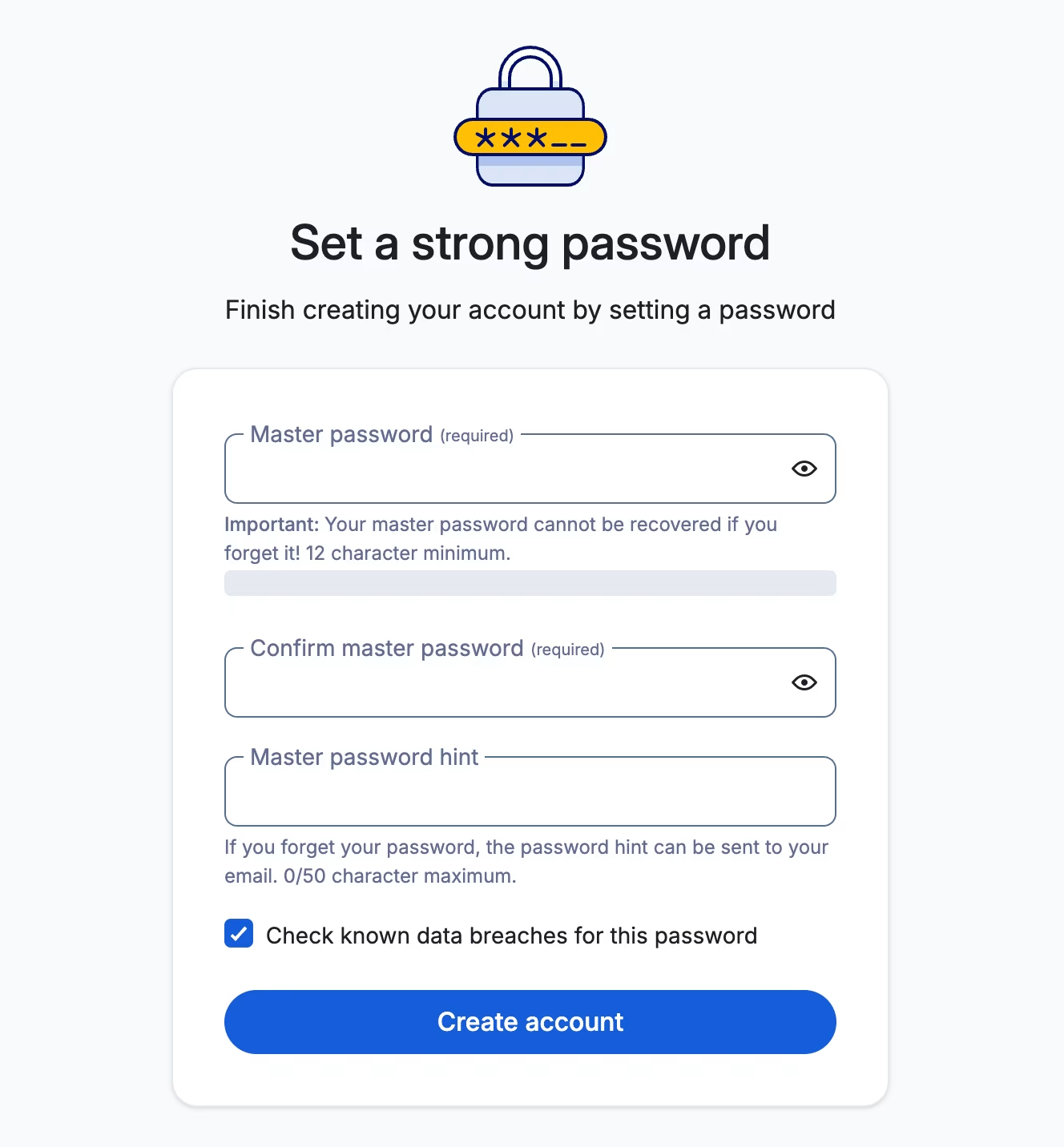
During sign-up, you'll create a master password for logging in to Bitwarden. It's important that your master password is:
Memorable: Bitwarden employees and systems have no knowledge of, way to retrieve, or way to reset your master password. Do not forget your master password!
Strong: A longer, more complex, and unique password is the best way to protect your account. Bitwarden provides a free password strength testing tool to test the strength of some memorable passwords you are considering.
Create your company's Vault by navigating to Settings then Add plan in the Bitwarden web app.

If your company's shared Vault has already been created, ask your IT team or your manager for information on how you're expected to join Bitwarden. There are three ways to gain access to an existing Vault:
Accepting an email invitation
Clicking a designated link
Once created, you'll land in the Admin Console, which is the central hub for all things sharing and Vault administration. As the Vault's owner, you'll be able to see your Vault items and Shared Folders, manage Members, run Reports, change Billing settings, and configure other Vault Settings.

As an admin or owner, you will likely be responsible for managing initial access to vault items, such as logins, cards, or identities for your team members. In Bitwarden, this is accomplished using Shared folders.
A Shared folder groups related items so you can securely share them with other members of your organization. You can create items and assign them to one or more Shared folders:

A few things to know about Shared folders:
Items in a Shared folder belong to the organization vault, not to any one specific person.
Organization-owned items must be assigned to at least one Shared folder, but may be assigned to more than one. It remains one item, so an edit shows up everywhere it's shared.
Anyone with the Manage shared folder permission may decide who else can see the contents of that folder by assigning permissions to other Users or Groups, ensuring people only see the items they need. When you create a new Shared folder, you are automatically assigned this permission.
Data can also be imported directly to your organization! Learn how here.
Enterprise Shared vaults provide powerful tools for improving your online security and integrating with existing workflows and tools. Some features you may manage as an administrator of your Shared vault include:
Setting up policies to enforce security rules for users, such as mandating the use of two-step login
Auditing which credentials members have access to
Integrating Bitwarden with your existing SSO workflow
Claiming your company's domain for a seamless login experience
Setting up device trust requirements for members or approving their devices
Integrating Bitwarden with your existing SIEM tool, like Microsoft Sentinel
Import your company's passwords and data into Bitwarden for secure scalable sharing and autofill across your team. Choose an import method below based on your preferred Bitwarden client.
Prefer reading? Read the full documentation.
Learn how to import data into your vault with the Bitwarden CLI.
As an owner or admin, you may also be responsible for managing members of your team or your company more broadly. Members can be added to your organization:
Directly from the Admin Console's Members page (learn more).
By integrating Bitwarden with your IdP using SCIMor with your directory service using Bitwarden Directory Connector.
Members can be assigned access to Shared folders in order to control the vault data they have access to and so can groups. Groups relate together individual members and provide a scalable way to assign Shared folder permissions in bulk:

Simplify the SSO process for your team by claiming your domain.
Free Bitwarden Families plans are enabled by default and can be disabled in your organization settings.
Find answers instantly with Bitwarden Ask AI.
Try Ask AIConnect with experienced Bitwarden users who share tips and solve problems together. Ask questions on the Community Forums or Reddit.
Running into a technical issue or have account questions? Contact the Bitwarden support team for direct assistance.
Contact SupportSuggest changes to this page
How can we improve this page for you?
For technical, billing, and product questions, please contact support