View & Update Billing Details
Billing information can only be updated from the Bitwarden web app. The steps differ depending on whether you're updating your individual account's billing or your organization's billing.
Not sure which plan you're on? For individuals, check the Settings → Subscription page. If you have access to the Admin Console, you're an owner or admin in an organization. As an owner, you can go to Billing → Subscription to find your plan.
Individual and organization subscriptions are billed separately, so updating one does not automatically change the other. If you have a Premium account and belong to a Families organization, for example, updating your Premium subscription's payment method won't impact the organization's billing.
To review your individual subscription's billing information:
From the Bitwarden web app, go to Settings → Subscription .
Select Payment details:
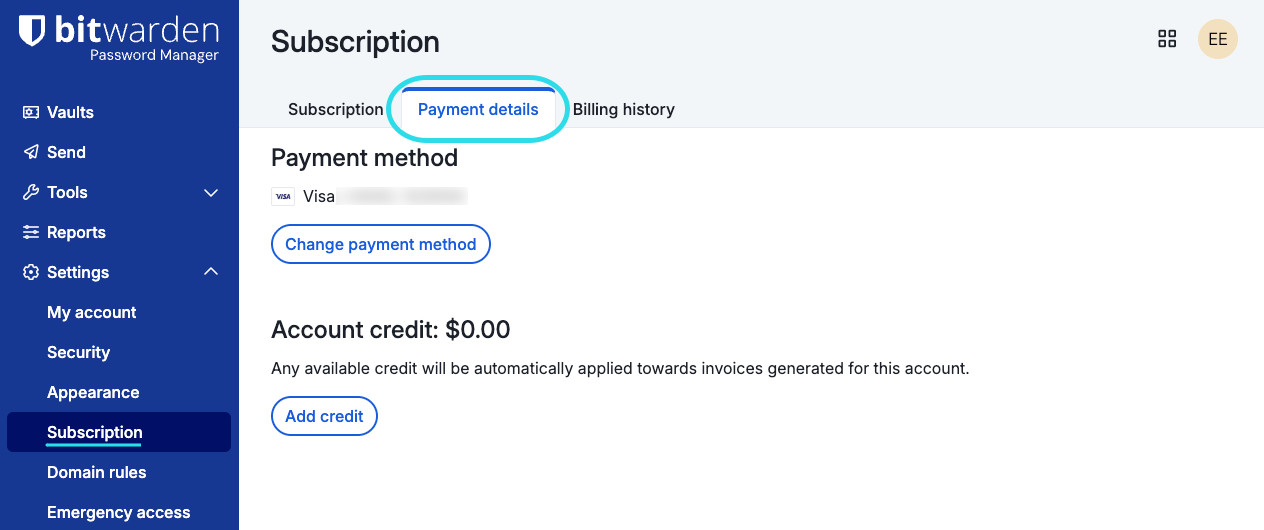
Payment details for an individual subscription On this page, you can view or select:
Change payment method to edit the payment method charged automatically when your subscription renews.
Add credit to buy account credit via PayPal or BitPay. Available credit will be automatically applied towards your next payment.

Select the Subscription tab to learn more about your next charge, add storage for attachments, or cancel your subscription. Go the Billing history tab to view past transactions and download invoices.
If we can't process your renewal, your subscription will revert to the free plan. To fix this, update your payment method or pay the unpaid invoice directly. If your account doesn't return to your paid subscription, contact us.
Only owners can review and edit their organization's billing. Log in to the Bitwarden web app and open the Admin Console. Select Billing from the navigation to find most of your organization's billing details.
Assign at least one additional owner to maintain access to billing and subscription details if the current owner becomes unavailable.
To access your organization's billing details:
From the Bitwarden web app, open the Admin Console.
Go to Billing → Payment details:
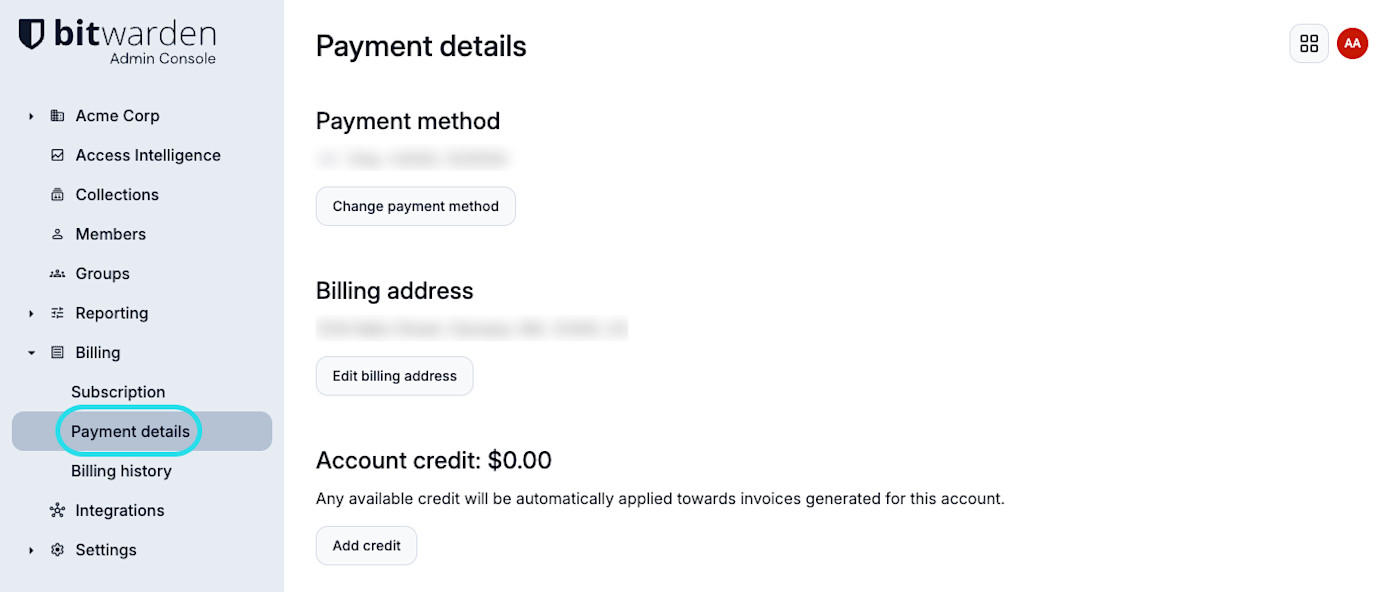
Payment details for organizations On this page, you can view or select:
Change payment method to edit the payment method charged automatically when your subscription renews.
Edit billing address to change the billing address associated with your subscription, including a VAT or GST number where applicable.
Add credit to buy account credit via PayPal or BitPay. Available credit will be automatically applied towards your next payment.

If we can't process your organization's renewal, access to your organization's data is limited. To fix this, update your payment method or pay the unpaid invoice directly. If your organization doesn't return to your paid subscription, contact us.
Go to Billing → Subscription to manage your organization's subscriptions seats. From here, you can adjust the number of paid seats or set a seat limit for the Password Manager and Secrets Manager.
The billing email on file is sent important announcements about your subscription, like upcoming renewal reminders or unpaid invoices. To edit the billing email:
From the Bitwarden web app, open the Admin Console.
Go to Settings → Organization info.
Enter the correct address in Billing email:
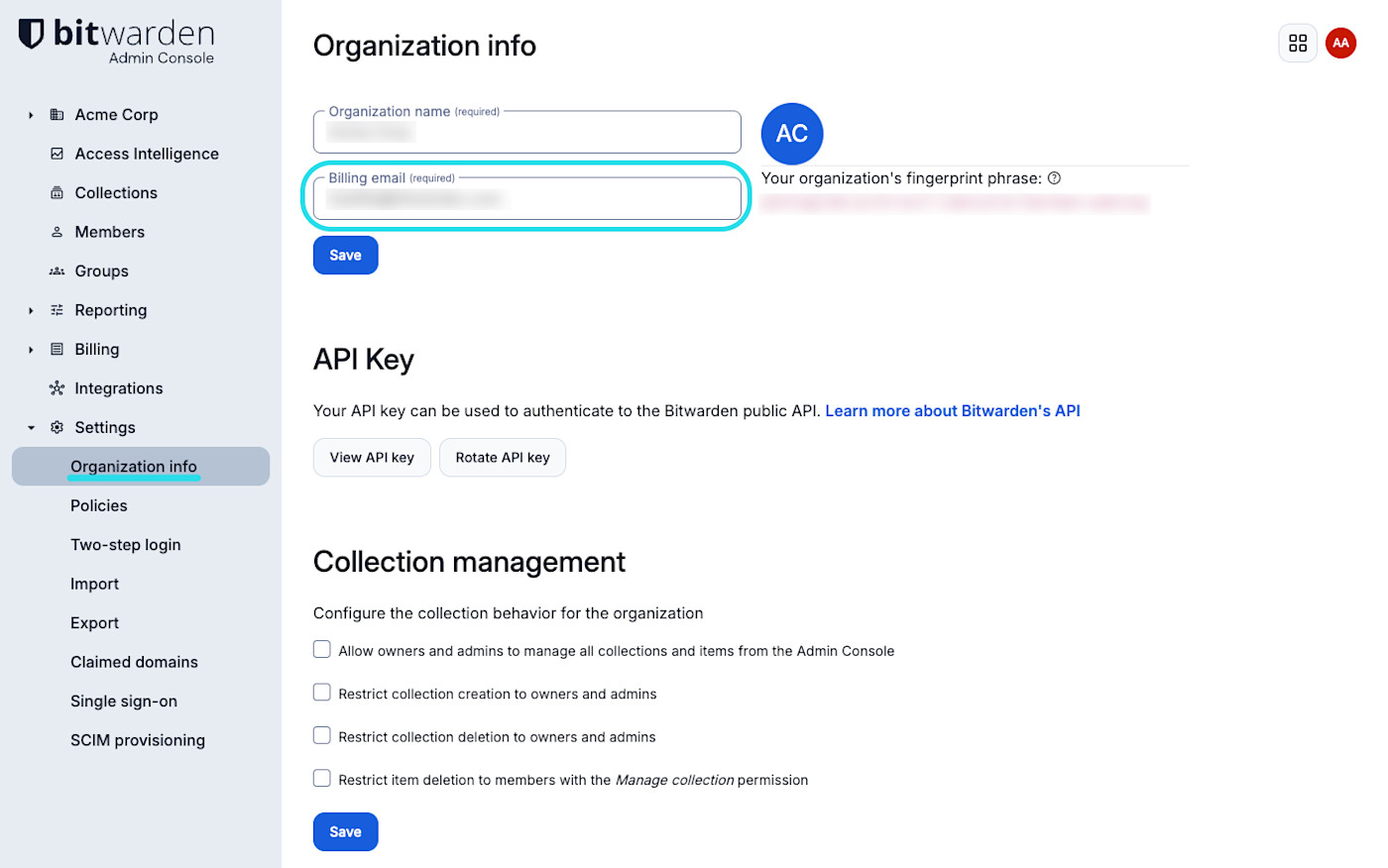
Edit billing email Select Save.

The holder of your organization's billing email can contact us for billing assistance, including:
Add or remove a credit card from the subscription.
Change the billing email for the organization.
Ask about invoices and billing information on file.
Swap between a monthly and annual billing cycle (if applicable for your organization).
Request a plan upgrade, downgrade, cancellation, or subscription seat adjustment.
They may not, only by virtue of holding that email address, request the organization's deletion, be given the identity of current organization owners, or request the promotion of any user's role to an owner.
The organization's name is printed on invoices and visible throughout the Bitwarden app. To change your organization's name:
From the Bitwarden web app, open the Admin Console.
Go to Settings → Organization info.
Enter the correct name in Organization name:
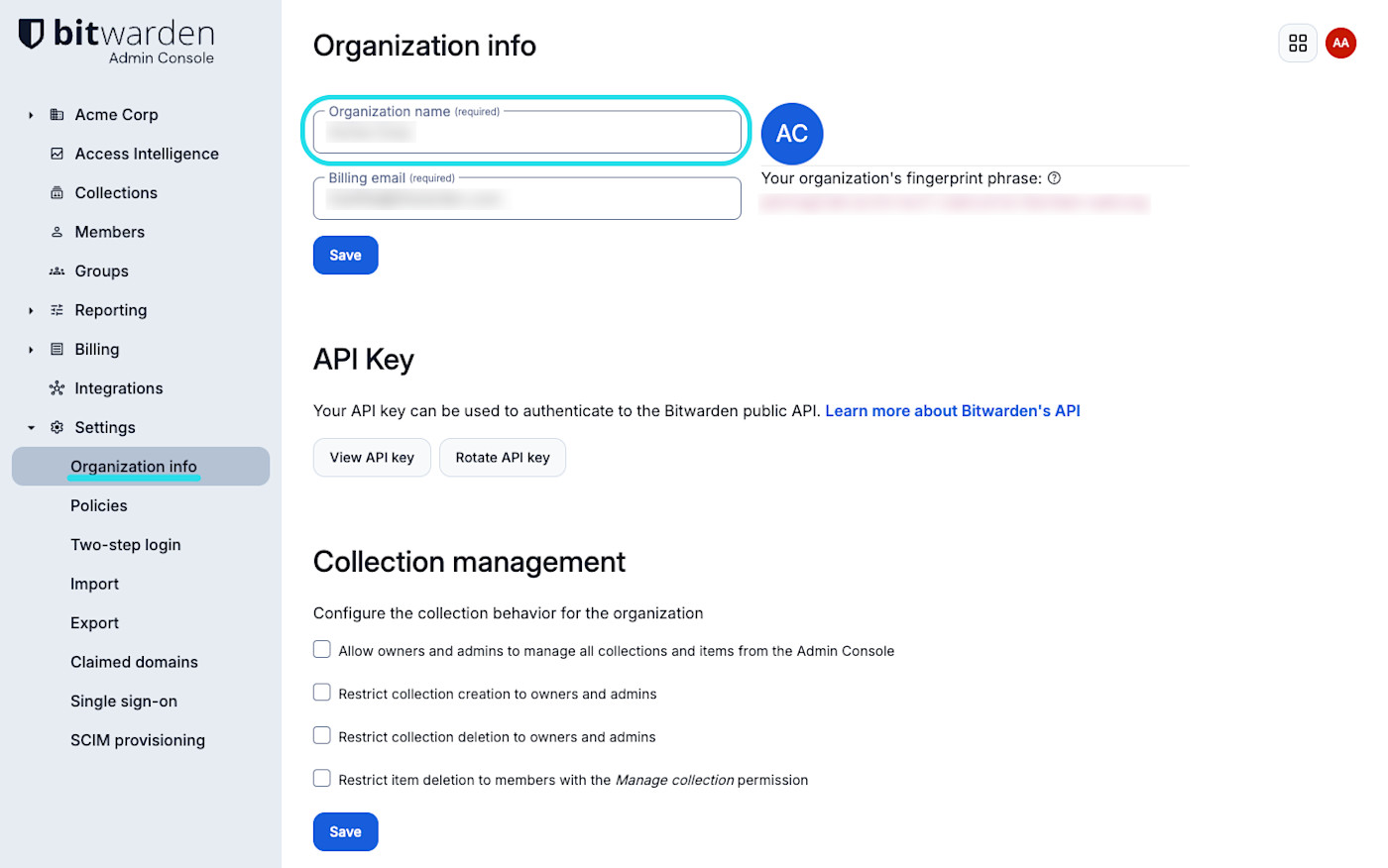
Edit organization name Select Save.

Only owners can cancel your organization's subscription renewal.