Claimed Domains
Enterprise organizations can claim ownership of a domain (e.g. mycompany.com) using a unique DNS TXT record. Claiming a domain lets you block outside sign-ups on matching email addresses, deleting claimed member's accounts instead of removing them, and give those members a faster SSO login experience. Learn more about how your organization can benefit once your domain is claimed.
Claiming a domain doesn't automatically invite anyone or add seats to your subscription. It only takes effect for users who are already confirmed members of your organization. A claimed domain will automatically populate the first time in Allowed domains when generating an organization invite link. This will not persist if the domain is removed from the list, deactivated or rotated.
Before claiming a domain, ensure that:
No other organization has verified the domain.
Your organization has ownership of the domain.
Bitwarden uses a DNS TXT record to validate a domain claim. This DNS TXT record must be kept active and available at all times, as Bitwarden continually checks for it. To claim a domain, complete the following steps as an admin or owner:
Log in to the Bitwarden web app and open the Admin Console using the product switcher:
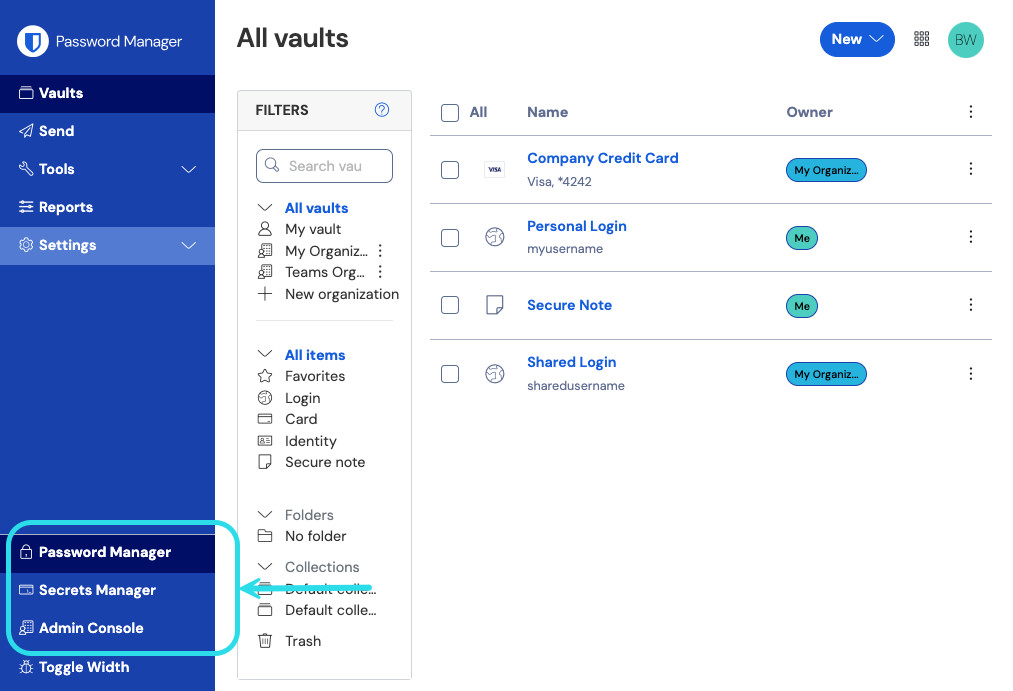
Selettore prodotto Navigate to Settings → Claimed domains:
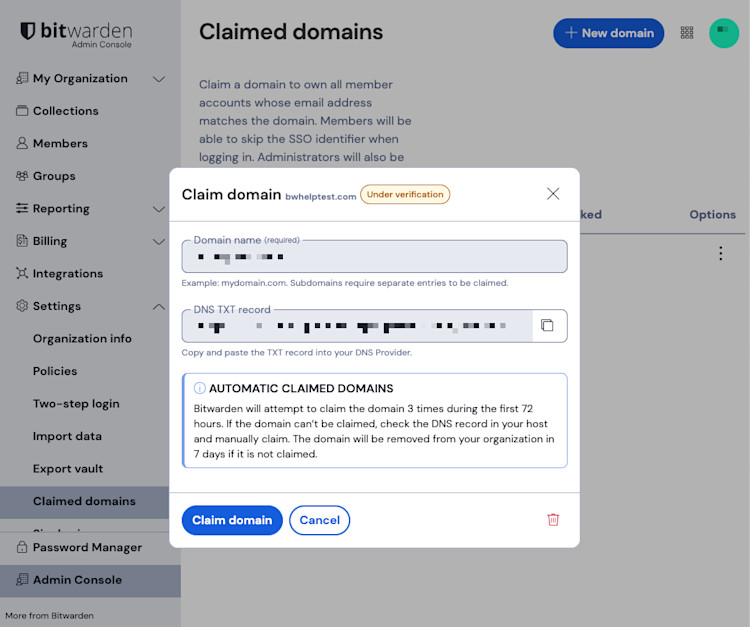
Claiming a domain On the Claimed domains screen you will see a list of active domains, along with status checks and options. If you have no active domains, select Add domain.
tipWhen you claim a domain, the single organization policy is automatically activated during the claiming workflow. Domains that were claimed prior to the 2025.3.0 release do not automatically activate this policy, however, any subsequent domains claimed by the organization do.
In the pop-up window, enter a Domain name.
noteThe format of the domain name entry should not include
https://orwww..Copy the DNS TXT record and add it to your domain.
Select Claim domain.

You can manage and view the status of your domains from the Claimed domains page. All domains will have a status of Claimed or Not Claimed:

Use the menu located on the right side of the domain to:
Edit or delete a domain.
Copy DNS TXT record to provide it to your DNS provider.
Manually verify domain if automatic claiming was not successful.
Before updating your claimed domain in Bitwarden, verify that your TXT record is publicly visible using the dig command:
Bashdig your.domain.com TXT
If the wrong TXT record is found, your DNS changes may need more time to propagate. If the right TXT record is found but claiming still fails, your Bitwarden server may be configured to use an internal DNS server than the public one in which the update was made.
Domain claiming activities are logged in the organization event logs. To view events, navigate to Reporting → Event logs in the Admin Console.
Bitwarden attempts to verify the domain 3 times during the first 72 hours. If the domain has not been verified within 7 days after the 3rd attempt, the domain is removed from your organization.
Once your domain is claimed and verified, your organization gains access to the following:
Turn on this policy to prevent email accounts with matching domains (e.g. jdoe@mycompany.com) from creating Bitwarden accounts outside the organization. When the policy is on, email accounts with matching domains can only be used to create Bitwarden accounts by being invited to join the organization.
If you're self-hosting Bitwarden but want to block account creation on both your self-hosted server and a Bitwarden cloud server, you must claim your domain and activate the Block account creation policy option on both servers.
Onboarded organization member accounts that use an email address with a matching domain (e.g. jdoe@mycompany.com) will automatically be claimed by your organization, resulting in a few key changes to the way the account works:
A user must have a matching domain and be a confirmed member of your Bitwarden organization to be considered a claimed account. Claiming a domain does not automatically invite any users and therefore will not in and of itself add to your subscription seat count.
Claimed account benefit | Description |
|---|---|
Organization managed account email and name updates | Organization administrators can change the email address and name on claimed member accounts that do not have a master password, such as those set up with trusted devices or Key Connector. |
Organization managed account deletion | Claimed member accounts can be outright deleted by organization administrators, instead of only being able to be removed from the organization. Owners and admins can delete a claimed account from the Admin Console's Members page using the ellipses menu. |
Restrict access to account actions | Users with member accounts are restricted from changing the domain of their email address, leaving the organization, purging their vault, and deleting their account. |
Easier SSO workflow | During SSO authentication, these members automatically bypass the step that would require them to enter an SSO identifier. |
Automatically verified emails | These members have their email automatically verified when on-boarded. |
Members of your organization that do not have claimed accounts can be removed from the organization instead.
Directory Connector and SCIM do not have the ability to delete claimed accounts. Deleting an account can only be done by admins and owners from the web app Admin Console.