Import from Keeper
Quickly transfer data from Keeper Password Manager to Bitwarden using one of two methods:
Using a Bitwarden browser extension or desktop app, import data directly without needing to download a file.
Using any Bitwarden app, download an export from your Keeper account and import it into Bitwarden.
To import Keeper data directly to Bitwarden, without needing to download an export file and transfer data manually:
In the Bitwarden desktop app or browser extension, open the Import page:
On desktop apps, select Import from the navigation.
On browser extensions, navigate to Settings > Vault options > Import.
Choose the Vault you want to import to and, optionally, a Folder or Collection to add imported data to.
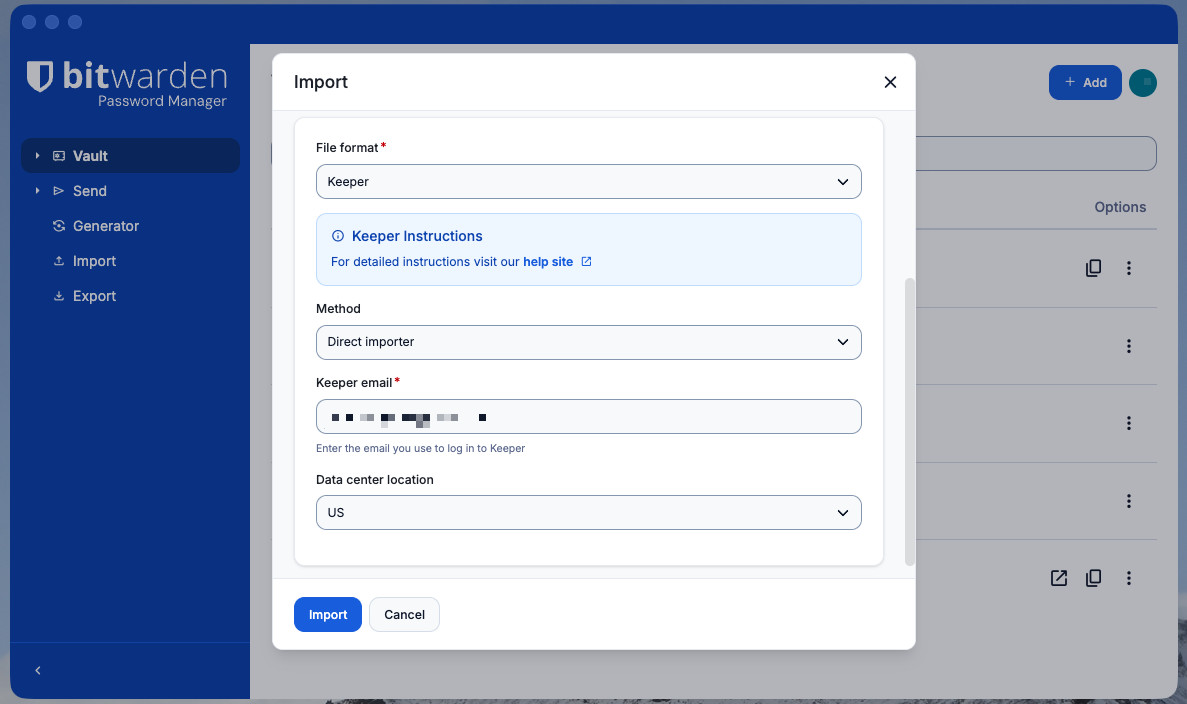
Import directly from Keeper From the File format dropdown, select Keeper.
From the Method dropdown, select Direct importer.
Enter your Keeper email and Data center location.
tipYour Data center location correlates to the region you select when you log in to Keeper. It can also be found in the URL of your Keeper vault when logged in on the web (for example,
keepersecurity.comis US,keepersecurity.euis EU, and so on).Select Import and, when prompted, complete your required authentication steps for Keeper. This requires your Master Password or SSO and some form of Device Approval. Here are two examples of what this will look like:
As a personal user of Keeper, you would typically:
Select a Device approval method to use. For personal users this can be:
An Email sent to the inbox attached to your Keeper account.
A Keeper Push notification that you can approve from the Keeper web app.
A Two-factor method you're using for your Keeper account.
noteBitwarden currently supports the Keeper Text Message, Authenticator App, and Keeper DNA options for two-factor authentication.
Enter your Keeper Master Password.

To export data from the Keeper web app:
Select your account email in the top corner of the web app and select Settings from the dropdown:
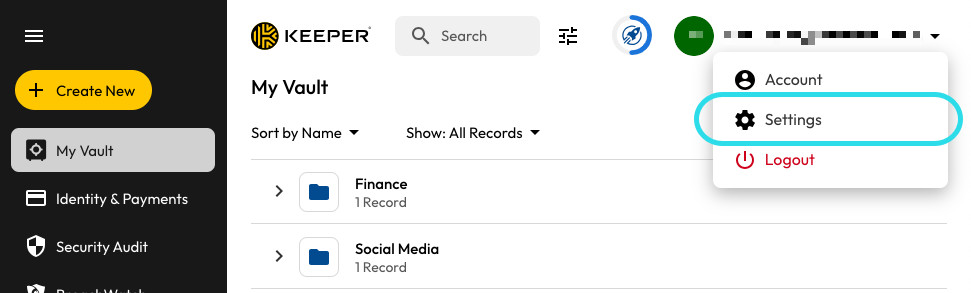
Export from Keeper Select Export from the pop-up window.
Choose the CSV or JSON export file type.
Select Export.
Enter your Keeper Master Password.
Select Export Now.

Data can be imported to Bitwarden from the web app, browser extension, desktop app, and CLI. Data is encrypted locally before being sent to the server for storage.
While some item types cannot be imported, you can still add them to a vault:
Upload file attachments to the new vault individually.
Re-create Sends in the new vault.
To import data to your Bitwarden vault:
Select Tools.
Select Import:
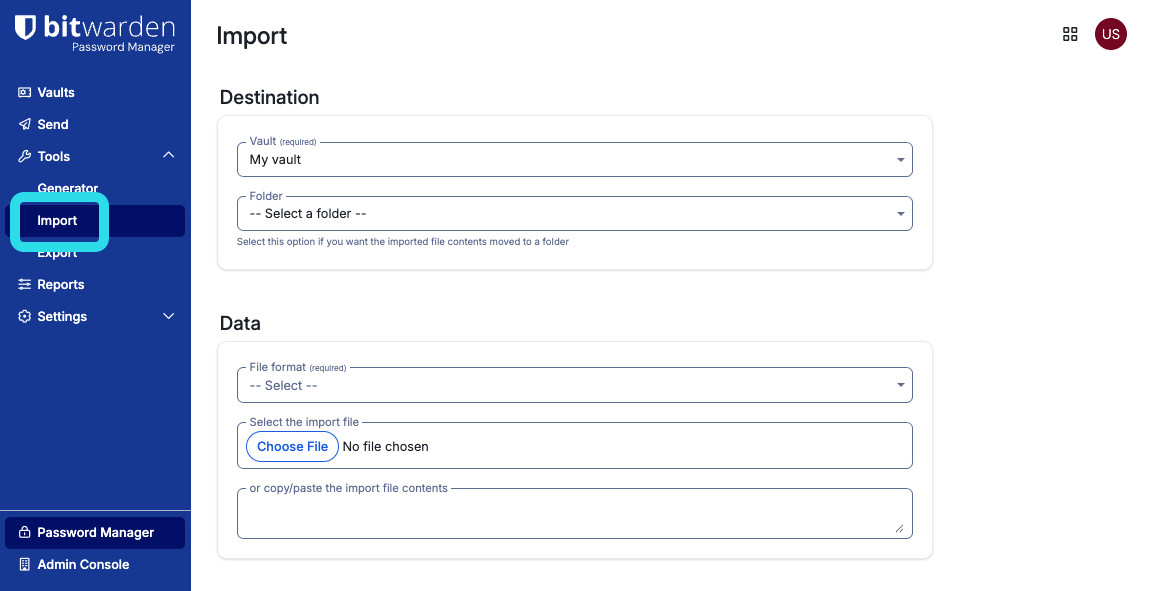
Import items From the Vault dropdown menu, select where to save the data:
To save data in your personal vault, select My vault. (Optional) Choose an existing Folder to organize the imported items.
noteIf your data file contains folders from your previous password manager and you select a destination folder from the dropdown menu, the imported folders will be nested inside the folder you selected.
To save data in an organization's vault, select the organization's name. (Optional) Choose a Collection to organize the imported items and share with other members. (You can only choose a collection where you have can manage permission.)
From the File format dropdown menu, select the file format of your exported data.
To enter your data, do one of the following:
Select Choose File and pick the exported file from your computer.
Copy and paste the contents of your exported file into the text box.
warningImporting does not check for duplicates. If you import the same file more than once or import items already in your vault, duplicate items will be created.
Select Import. If you're importing a password-protected
.jsonfile, enter the password into the Confirm vault import window that appears.After your data is imported, delete the exported data file from your computer. This will protect you in the event your computer is compromised. If you're importing to Bitwarden from another password manager or browser, you may also want to delete data from that tool.

If an “Import error” message appears, no data was added to your vault. Fix the import file issue and try again.