Temporarily Revoke Access
Revoking a member is how you temporarily remove someone from your organization. You can later restore their access or permanently remove them from your organization. When a member is revoked, they:
Cannot access any organization vault items or collections.
Cannot log in with your organization's SSO.
warningMembers who do not have master passwords, for example in organizations using trusted devices or Key Connector, will be fully locked out of their account if they are revoked.
Are not subject to your organization's policies.
Do not occupy a subscription seat.
There are a few ways to revoke a member. Members are automatically revoked when they violate certain enterprise policies or the member is suspended or deactivated in the IdP used for their organization's SCIM.
Alternatively, an owner, admin, or custom role member with Manage users permission can manually revoke users:
In the Admin Console, select Members.
Check the member(s) you want to revoke.
Select the Options menu.
Select Revoke access:
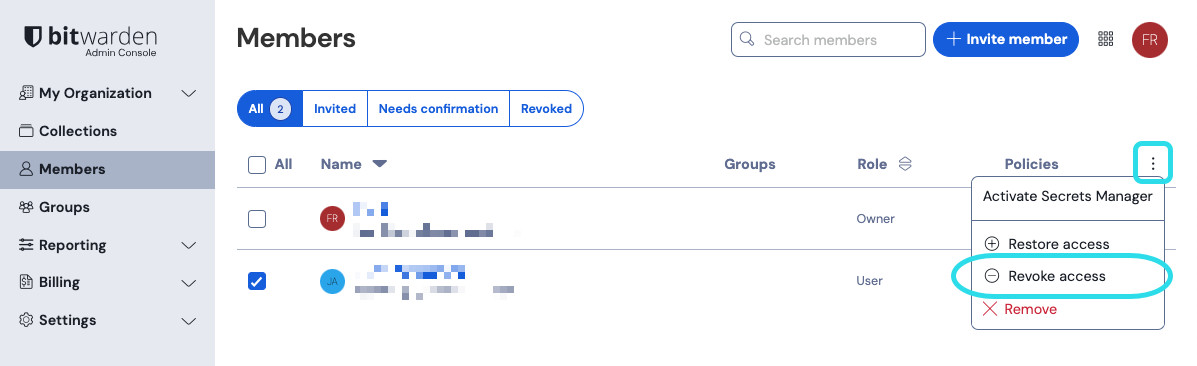
Revoke access Select Revoke members to confirm.

To view which members are revoked, go to Members → Revoked. Hover over the Revoked icon next to a specific user to learn why they were revoked:

If it says "Unknown reason," then the member was revoked before release 2026.5.0.
An owner, admin, or custom role member with Manage users permission can restore members' access quickly. Restoring access to a revoked member does not require that they take any steps to rejoin the organization, meaning they don't need to be re-invited, accept an invite, or be confirmed.
Members who are not compliant with some enterprise policies cannot be restored to your organization until they take steps to become compliant with those policies.
To restore access to a member:
In the Admin Console, select Members.
Select Revoked.
Check the member(s) you want to return to the organization.
Select the Options menu.
Select Restore access:
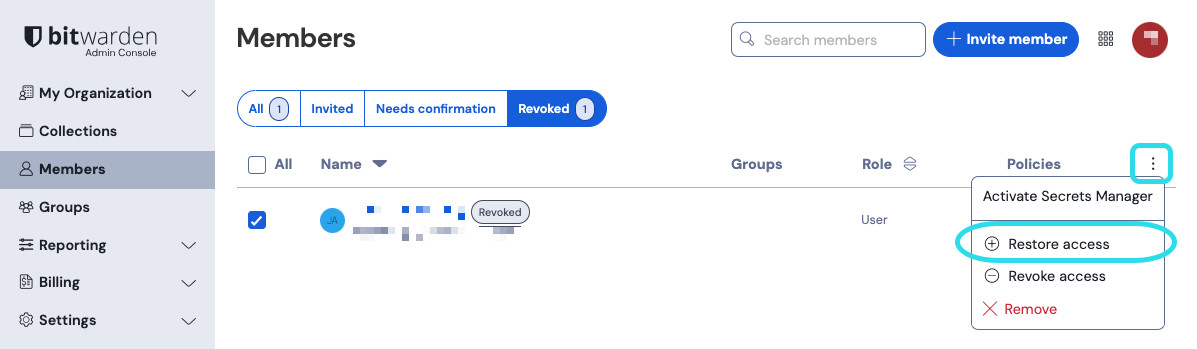
Restore access Select Revoke members to confirm.
