Recover a Member Account
To recover the account of a member who lost their master password, two-step login method, or trusted devices:
You must be an owner, admin, or permitted custom role member.
Your organization must have the Account recovery administration policy turned on.
The member whose account you want to recover must be enrolled.
You can view which members are enrolled in account recovery on the Members page. A Key icon will be present in the Policies column.
To help your organization member regain access via account recovery:
In the Admin Console, go to Members.
(Optional) If the account is revoked, select Revoked.
For the member whose account you want to recover, select the Menu icon on the same line as their account.
Select Recover account:
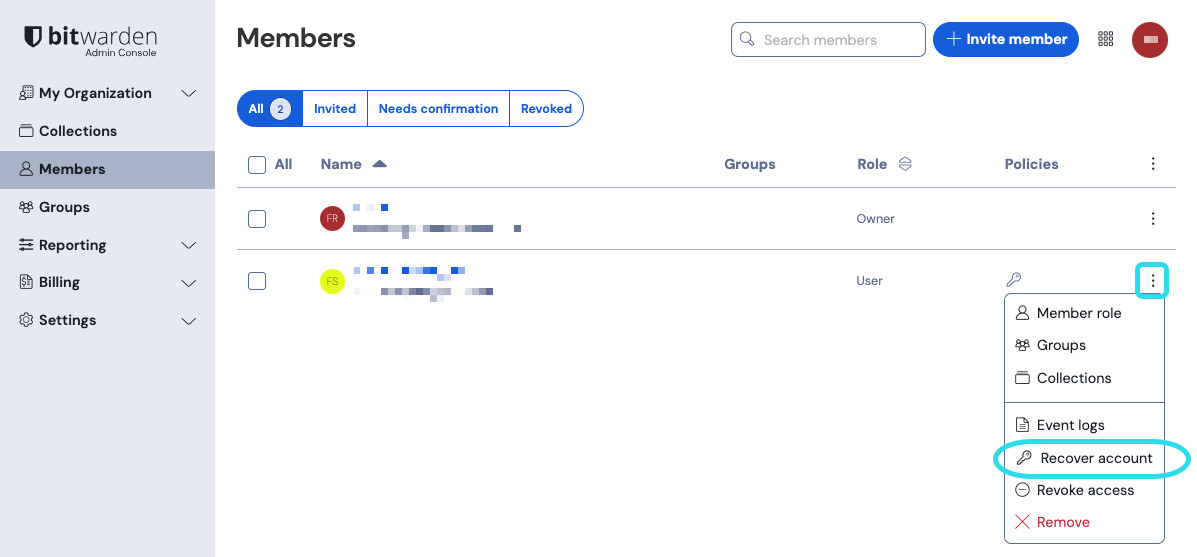
Recover account In the Recover account window that appears, check which credential(s) you want to reset:
Check Reset master password to create a new temporary password, which must meet your organizations' requirements if the Master password requirements policy is on. Copy the new master password and share it securely with the member, such as with Bitwarden Send.
Check Reset two-step login to remove two-factor authentication set up for Bitwarden (not your IdP). If the member hasn't set up any two-step login method, this option cannot be checked.
noteIf the Require two-step login policy is on, resetting a member's two-step login method will automatically revoke them because they'll no longer be compliant. Ask them to notify you after they set up a new two-step login method to restore access.
Select Save. This will send an email to the member's account email with next steps and log the user out of their current sessions. Active sessions on some client applications, like mobile apps, may remain active for up to one hour.
