Cancel a Subscription
Bitwarden subscriptions renew automatically so you don't lose access to paid features. If you cancel automatic renewal, you can continue using your subscription until the end of your current billing cycle. After your subscription ends, you'll lose access to paid features, but your account or organization won't be deleted. If your subscription is less than 30 days old, contact us for a refund.
Deleting your account also stops your subscription from renewing at the end of your billing cycle, the same as canceling it. To keep your account but cancel your subscription, follow the steps below.
To cancel a personal subscription:
In the web app, go to Settings → Subscription:
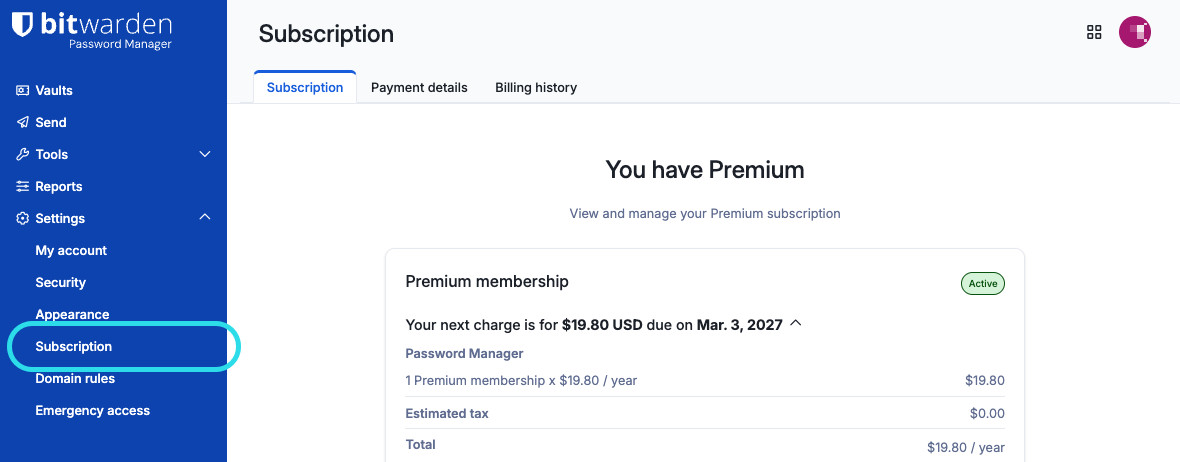
Subscription page Take note of the Next charge date. This is when you will lose access to paid features once your subscription is cancelled.
Select Cancel subscription.

If you self-host Bitwarden, cancel your subscription from the Bitwarden web app and server where you created the subscription.
If you cancel a premium subscription within 30 days of the its creation, contact us for a refund. Subscriptions older than 30 days are not eligible for a refund.
When you confirm cancellation, your account will move into a Pending cancellation status until the noted Next charge date is reached.
If you change your mind before the end of the billing cycle, select Reinstate subscription on the same page to turn the renewal back on.
When the Next charge date is reached, your account will revert to a free individual plan and you'll lose access to all paid features. The free plan also changes access to these specific features:
Two-step login: You will not be locked out of your vault, however you will not be able to use advanced two-step login options such as Yubikey or Duo for authentication. Your secret keys will remain stored in vault items in the Authenticator Key (TOTP) field, however Bitwarden will not generate TOTP codes.
If you have a core two-step login option enabled (authenticator app or email), you will be prompted to use the enabled option.
If you do not have another two-step login option enabled, you will authenticate into your vault without two-step login.
Encrypted file attachments: Attachments will not be deleted from your vault. You will not, however, be able to download saved attachments or upload new ones.
Emergency access: Trusted emergency contacts will still be able to request and obtain access to your vault. As the account holder, however, you will not be able to add new or edit existing trusted emergency contacts.
To cancel an organization subscription you must be an organization owner:
In the web app, open the Admin Console and go to Billing → Subscription:
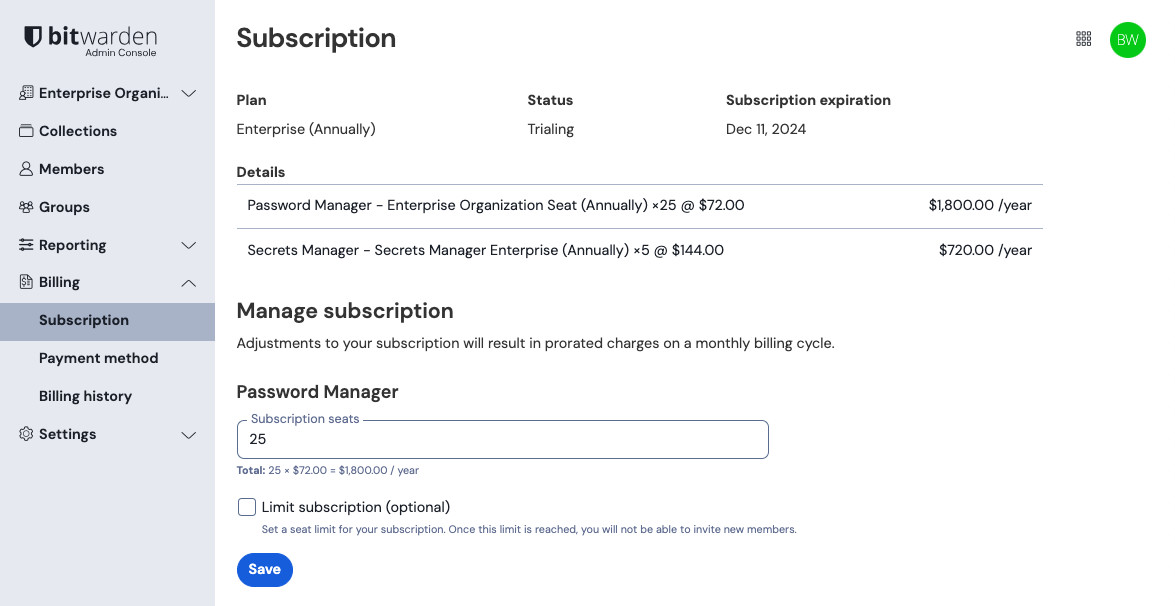
Organization subscription Take note of the Subscription expiration date. This is when your organization will lose access to paid features once your subscription is cancelled.
Scroll down and select Cancel subscription.

When you confirm cancellation, your organization will move into a Pending cancellation status until the noted Subscription expiration date is reached.
If you change your mind before the end of the billing cycle, select Reinstate subscription on the same page to turn the renewal back on.
When the Next charge date is reached, your account will revert to a free individual plan and your organization will move to a Disabled state. Your organization will lose access to all paid features and a few important things to note are:
Organization members: Existing members and groups will not be removed from the organization. If for any reason you'd like to reinstate your subscription, members will not need to take action to regain access.
Premium features: All members of the organization will lose access to premium features while your your organization is disabled, as described in the After personal cancellation section of this page.
Organization-owned items: Organization-owned items and collections will not be deleted. Organization owners will retain access to organization-owned vault items, but all other members will lose access to shared items while your organization is disabled.