Manage Subscription Seats in Your Organization
A user seat is the billed license for one user within a Bitwarden organization. When a user is invited to your organization, they occupy one user seat and are granted access to Bitwarden features under your specific plan. The total number of user seats represents how many users can join your organization. As such, user seats are not permanently attached to a specific member.
This article discusses only one of the available methods to invite users and manage your subscription’s seat count:
All organizations can manually invite users and update the seat count.
Teams and Enterprise organizations can use SCIM.
Teams and Enterprise organizations can use Directory Connector.
Enterprise organizations can invite members using a shareable invite link.
Enterprise organizations can use just-in-time (JIT).
Only an organization owner or provider service user can add or remove seats because it directly affects the organization’s billing subscription.
To check how many user seats your team already includes, open the Admin Console and go to Billing → Subscription. Your organization’s seat total is listed within Subscription seats:

If the number of user seats is higher than your organization’s total active users, then that means there are unassigned user seats. Unassigned user seats are still billed, so you may want to invite more people or remove the extra user seats from your subscription.
Removing a user from your organization does not automatically reduce your organization’s billed subscription seats. You still need to reduce the seat count.
When new users are invited, Bitwarden cloud Teams and Enterprise organizations will automatically increase the number of billed user seats. You can set a seat limit to prevent your seat count from exceeding a specified number or manually add seats as desired.
When you add seats in the middle of your billing cycle, you are only charged for the remaining time. If you're on a monthly plan, that prorated amount is added to your next scheduled renewal.
For annual subscriptions, new seats added mid-cycle are billed on a prorated basis. The prorated amount is charged to the payment method on file on the same day of the month as your renewal date. On your next annual renewal date, all of your seats are billed together for the full year.
For example, if your plan renews on July 15th and you add a seat on May 1st, you'll be charged on May 15th for the prorated remainder of the current period (May 1–July 14). When your annual renewal occurs on July 15th, all seats are consolidated into a single yearly charge.
Regardless of how you add seats, you must manually remove user seats you no longer want from your subscription. Removing seats will cause your next charge to be adjusted so that you are credited for time not used by the already-paid-for seat.
The number of seats a self-hosted organization has will always mirror its counterpart cloud-organization. This means self-hosted organizations do not automatically scale users. Instead, you must use the cloud Admin Console to manage your seat count.
To quickly reflect changes to your seat count made in the cloud Admin Console, you can set up billing sync. This will remove the need to re-upload your license.
To manually add or remove seats to your organization:
Log in to the Bitwarden web app and open the Admin Console using the product switcher:
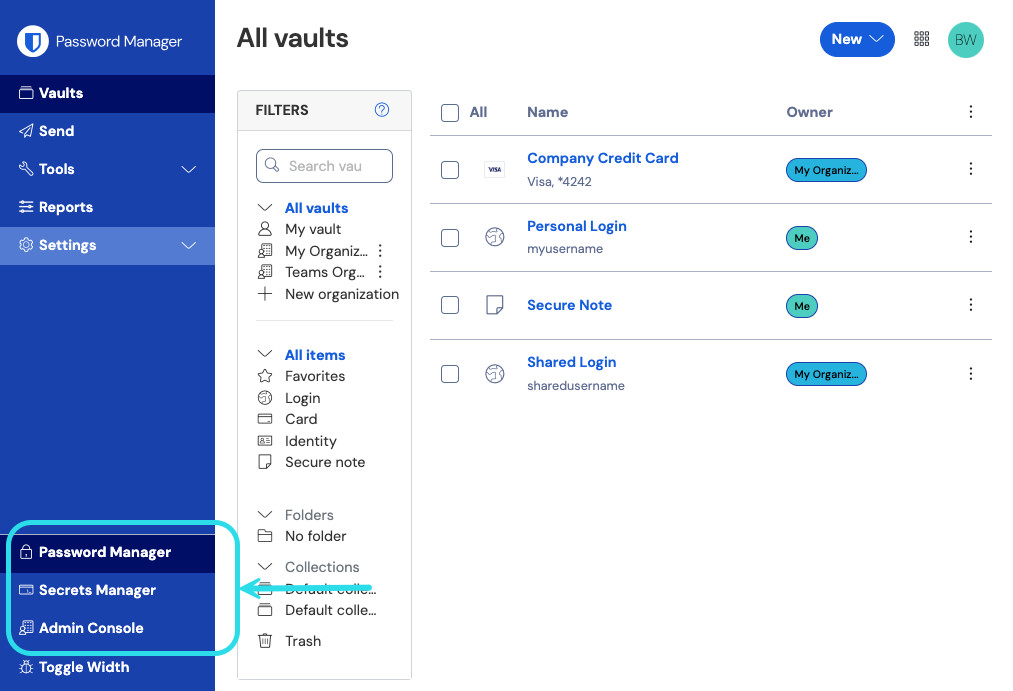
製品切り替えメニュー Go to Billing → Subscription.
Enter the total number of user seats that you want in Subscription seats:
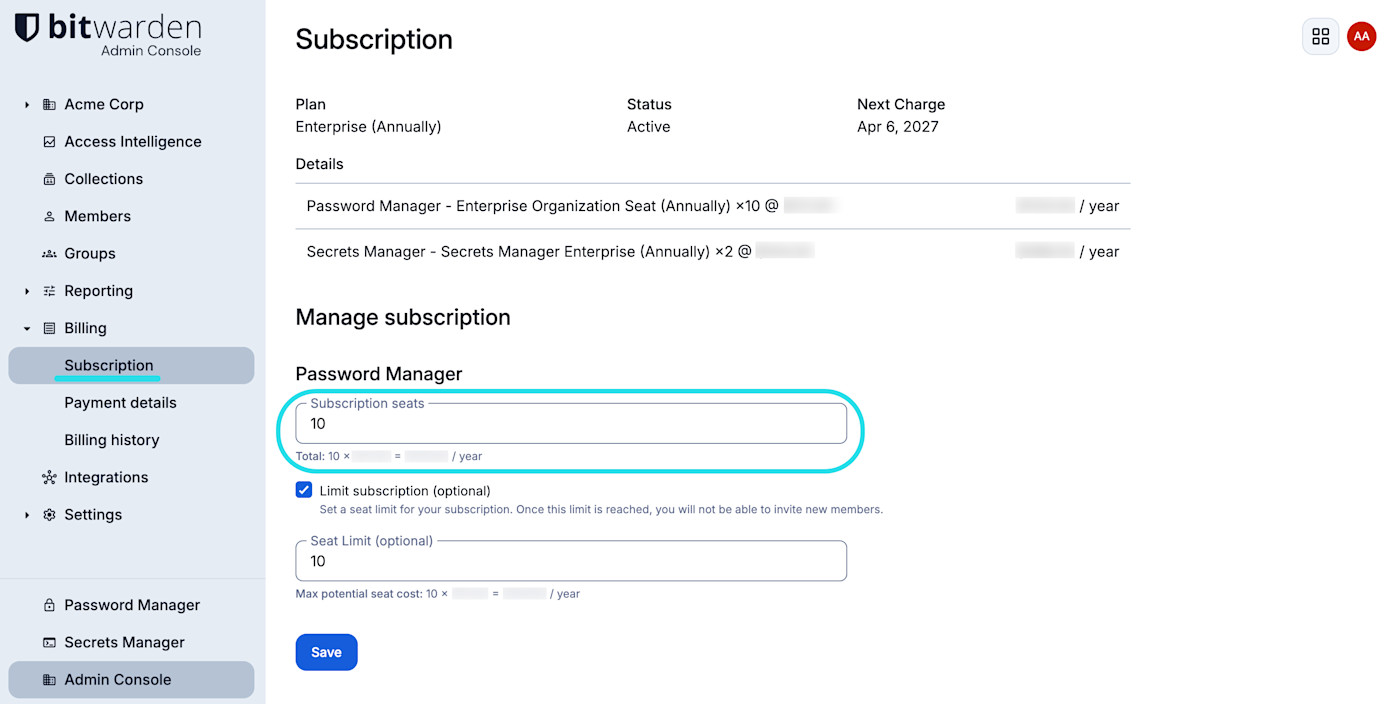
Set Subscription seats Select Save.
指定された制限に達すると、制限を増やさない限り、新しいユーザーを招待することはできません。
You have the option to control subscription costs by setting a cap on the number of user seats that can be added to your organization. Once the specified limit is reached, you will not be able to invite new users unless you increase that limit.
To set a limit on the number of seats your organization can automatically scale up to:
Log in to the Bitwarden web app and open the Admin Console using the product switcher:
製品切り替えメニュー Go to Billing → Subscription.
Check Limit subscription (optional).
Enter the maximum number of user seats you want to allow in Seat limit (optional):
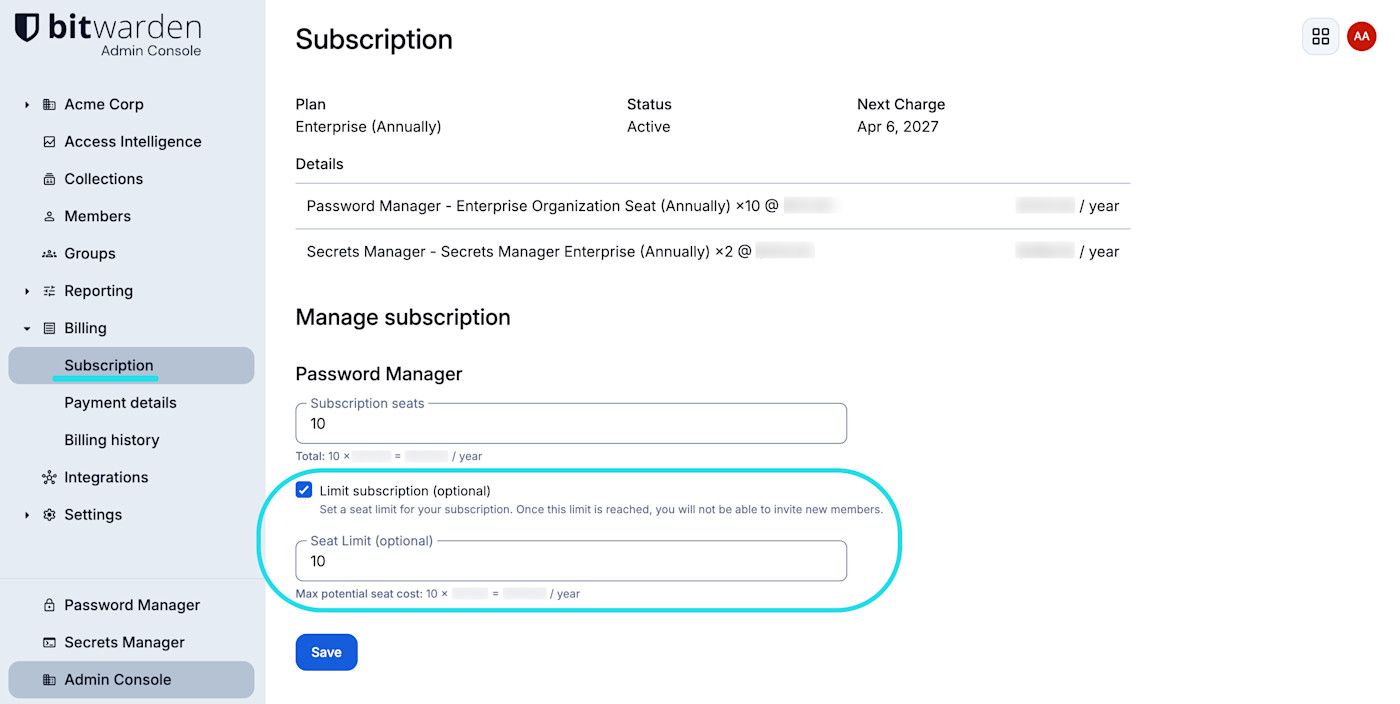
席の制限を設定します Select Save.
