Groups
What are groups?
Groups relate together individual members and provide a scalable way to assign access to and permissions for specific collections. When onboarding new members, add them to a group to have them automatically inherit that group's configured permissions.
note
Groups are available to Teams and Enterprise organizations.
Using groups
Organizations can designate access to collections based on member groups, rather than individual members. Group-collection associations provide a deep level of access control and scalability to sharing resources. One common group-collection methodology is to create Groups by Department and Collections by Function, for example:

Other common methodologies include Collections by Vendor or System (for example, members in an Engineering group are assigned to a AWS Credentials collection) and Groups by Locality (for example, members are assigned to a US Employees group or UK Employees group).
Create a group
Organization admins (or higher) and provider users can create and manage groups. To create a group:
Log in to the Bitwarden web app and open the Admin Console using the product switcher:
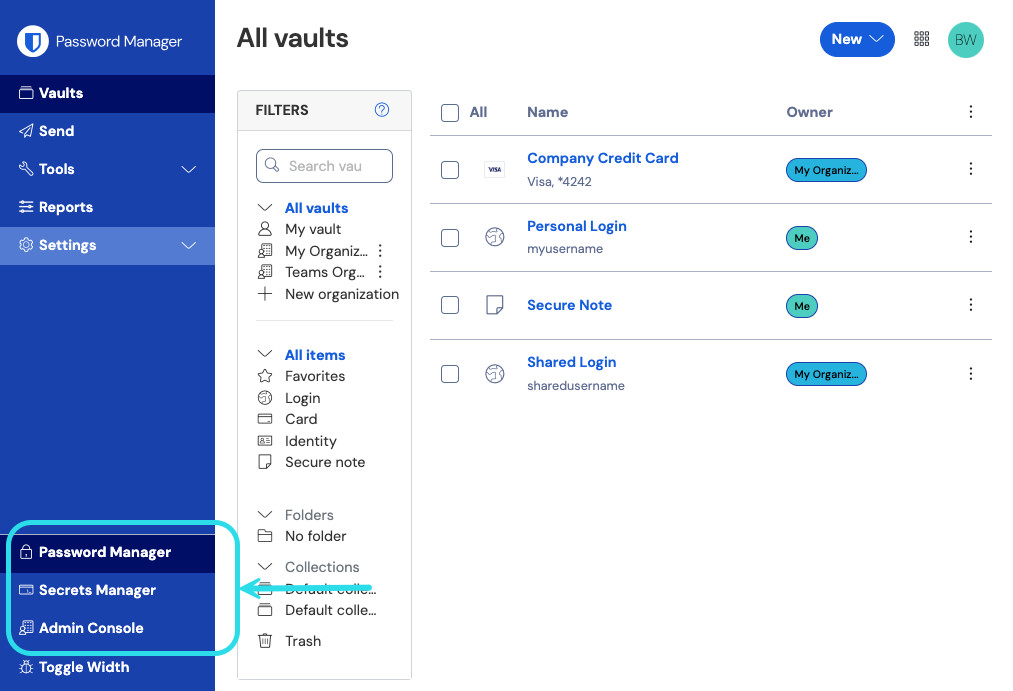
Product switcher Navigate to Groups and select the New Group button:
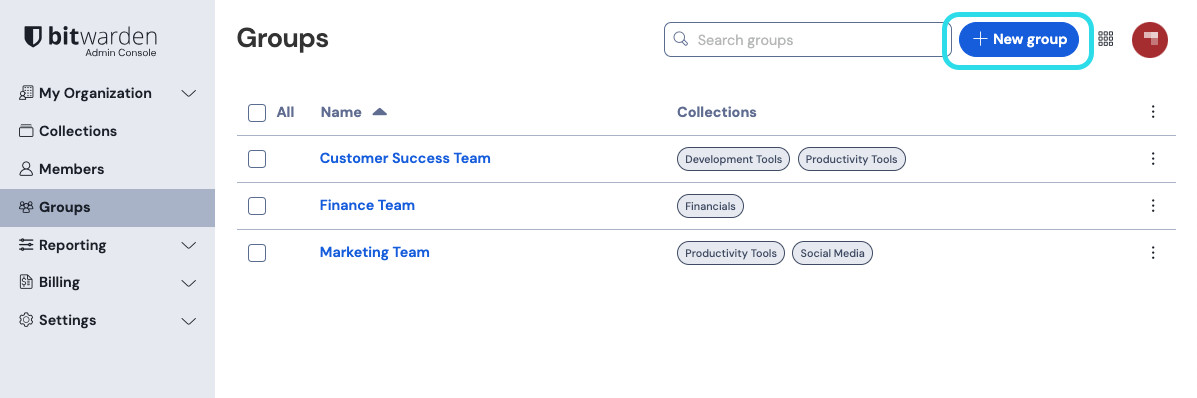
New group On the Group info tab, give your group a Name.
note
Fältet Externt ID är endast relevant om du använder Directory Connector och kommer att synas i dialogen när det konfigureras med SCIM, Directory Connector eller API.
On the Members tab, assign members to the group.
On the Collections tab, assign collections to group. For each collection, select the desired permissions:
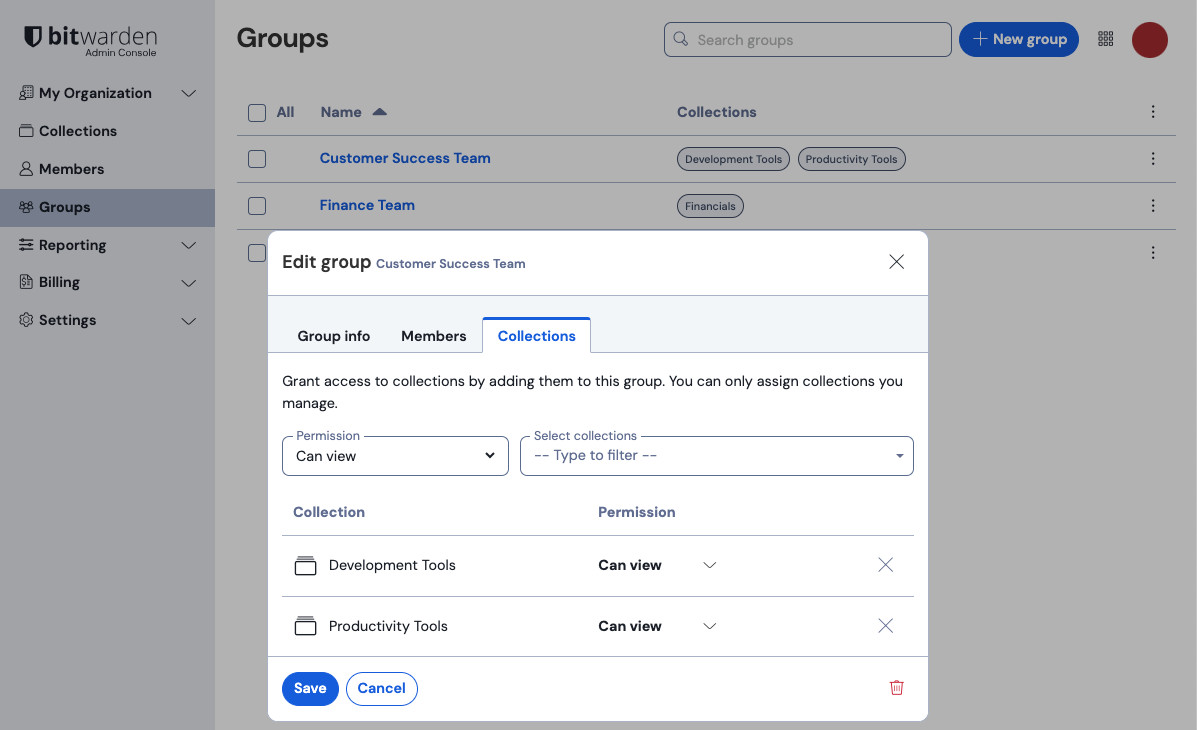
Collections permissions Permissions can designate that members can either view-only or edit items in the collection, as well as whether they can manage access to the collection and whether passwords are hidden.
Select Save to finish creating your group.


Edit members assignments
Once your groups are created and configured, add members to them:
In the Admin console, open the Groups view.
For the group you want to edit, use the options menu to select Members.
Add or remove members from the group and select Save
note
If the Owners and admins can manage all collections and items option is disabled, administrators are unable to add themselves to a group. However, they can add other administrators to a group. See Collection management settings for more information.
Edit collections assignments
If you want to change the collections or permissions assigned to a group:
In the Admin console, open the Groups view.
For the group you want to edit, use the options menu to select Collections.
Add, remove, or change collections permissions from the group and select Save.