Familjer som är värdar för sponsring
Medlemmar i företagsorganisationer erbjuds en gratis familjeorganisationssponsring som kan tillämpas på en ny eller redan existerande familjeorganisation och lösas in direkt från webbvalvet.
note
If you're looking for information on updating a license for a non-sponsored self-hosted Families organization, see here.
Du måste aktivera automatisk faktureringssynkronisering för att tillåta din företagsorganisation med egen värd att utfärda sponsring för molnfamiljers organisationer. Så här ställer du in automatisk synkronisering:
Steg 1: Aktivera molnkommunikation
Först måste du konfigurera din server för att tillåta kommunikation med våra molnsystem.
note
Det här steget måste slutföras av någon med åtkomst till din egen värdbaserade instanss konfigurationsfiler.
För att aktivera molnkommunikation, ställ in följande rad i bwdata/env/global.override.env till true:
BashglobalSettings__enableCloudCommunication=true globalSettings__baseServiceUri__cloudRegion=US
Om din molnorganisation skapades på EU-servrar måste du också ställa in följande värden:
BashglobalSettings__installation__identityUri=https://identity.bitwarden.eu globalSettings__installation__apiUri=https://api.bitwarden.eu globalSettings__pushRelayBaseUri=https://push.bitwarden.eu
note
Make sure before proceeding that your configuration correctly correlates to the data region selected when retrieving your installation ID & key as described above.
När du har ställt in dessa värden, tillämpa dina ändringar genom att köra kommandot ./bitwarden.sh omstart.
note
Att aktivera automatisk synkronisering kräver kommunikation med Bitwardens molnsystem. Om din miljö använder en brandvägg för att blockera utgående trafik måste du tillåta https://api.bitwarden.com eller .eu och https://identity.bitwarden.com eller .eu.
Steg 2: Hämta faktureringssynkroniseringstoken
När molnkommunikation har aktiverats på servernivå måste en synkroniseringstoken skickas från molnorganisationen du använder för fakturering till din egen värdorganisation. För att hämta din synkroniseringstoken från molnets webbvalv måste du vara en organisationsägare. Så här hämtar du token:
Öppna molnwebbappen och öppna administratörskonsolen med hjälp av produktväxlaren:
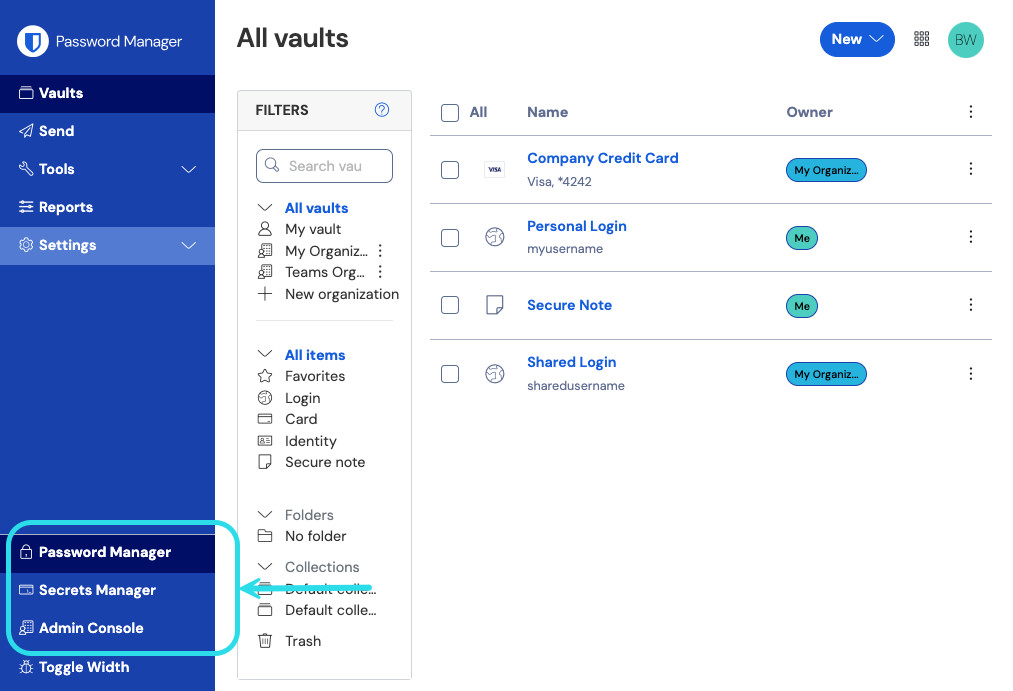
Product switcher Navigera till Fakturering → Prenumeration.
Rulla ned till avsnittet Självhotell och välj knappen Konfigurera faktureringssynkronisering.
Ange ditt huvudlösenord och välj Generera token.
Kopiera den genererade token.
Steg 3: Använd faktureringssynkroniseringstoken
Så här tillämpar du faktureringssynkroniseringstoken på din egen värdorganisation:
warning
At this stage, if you're upgrading your self-hosted deployment from an earlier version, you may need to manually update your license file before proceeding.
Öppna administratörskonsolen med egen värd och navigera till Fakturering → Prenumeration.
I avsnittet Licens- och faktureringshantering väljer du alternativet Automatisk synkronisering.
Välj knappen Hantera faktureringssynkronisering.
Klistra in din genererade faktureringssynkroniseringstoken och välj Spara.
note
Sync for Families for Enterprise kommer att ske en gång dagligen när du har utlöst din första synkronisering. Fältet Senaste synkronisering i det här avsnittet kommer att rapportera Aldrig förrän du utlöser din första synkronisering.
Synkronisering för licensuppdateringar måste alltid göras manuellt genom att välja knappen Synkronisera licens (se nästa avsnitt för detaljer).
Steg 4: Utlösa synkronisering
Utlösa en synkronisering när du har slutfört installationen. Faktureringssynkronisering sker en gång dagligen, men du kan manuellt utlösa en synkronisering när som helst. Så här utlöser du en synkronisering:
Öppna den självvärdade systemadministratörsportalen och navigera till Organisation och välj företagsorganisation.
Leta upp avsnittet Anslutningar och välj knappen Synkronisera manuellt.
note
Om du får ett felmeddelande om version som inte stöds, uppdatera din server och försök ladda upp din licensfil igen. För att uppdatera din server, gör en säkerhetskopia av bwdata-katalogen och följ dessa instruktioner.
Mellan synkroniseringarna kan användare se statusen Väntar på synkronisering efter att ha löst in eller ändrat en sponsring. Detta indikerar att din självvärdade Bitwarden-server väntar på att synkronisera med Bitwarden-molnet innan ett sponsring kan lösas in helt eller ändras.