

Bitwarden continues to lead in passkey development across two-step login, saving and syncing them, moving them between providers, or using passkeys to log into your vault. Now you can leverage Windows Hello and Apple Touch ID passkeys to authenticate and decrypt your Bitwarden vault without using a master password!
Windows Hello and Apple Touch ID authenticate you at the operating system level. They use specific, secure hardware in your computer to store the data needed to verify your identity, which you confirm with biometrics, PIN, or password.
Now, Windows Hello and Apple Touch ID both support using this storage space to create passkeys suitable for use with encrypted data, specifically those that support the WebAuthn PRF extension. These passkeys are bound to your computer and never leave it.
As Bitwarden supports WebAuthn PRF passkeys for logging and decrypting your vault, you can use this workflow to log into the Bitwarden extension and web app with Apple Touch ID or Windows Hello.
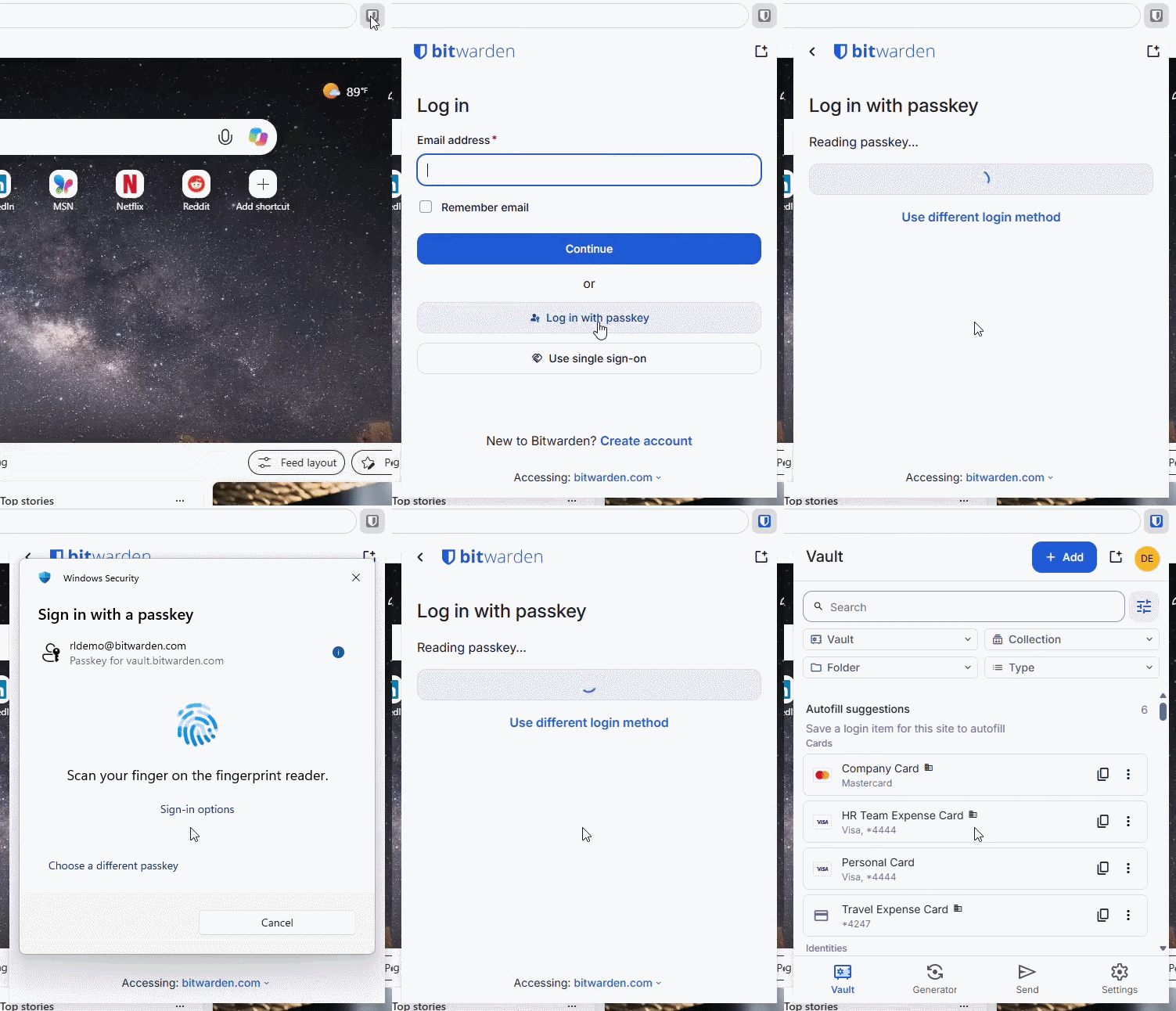
Seen above, the login process is easy:
In the Bitwarden extension or web app select Log in with passkey
Windows / macOS will automatically ask if you want to use Hello / Touch ID
Complete the Hello / Touch ID flow, such as touching your fingerprint reader
You’re logged into Bitwarden!
This simple end user flow couples secure cryptographic background processes and protocols that keep your vault secure.
Logging in on a computer you regularly use is easier than ever. You don’t need to enter your username, master password, or even go through two-step login when logging in with a passkey. Just a single verification through your operating system and you’re good to go.
For users that have enjoyed using biometric unlock, this can now be achieved with Hello / Touch ID without having to connect the Bitwarden desktop application, simplifying your setup.
You can also skip your hardware security key, as the laptop now acts as its own security key. It doesn’t hurt to keep backup security keys handy (but stored securely!) in case you need to replace your device.
Businesses benefit too with improvements in management and usability for end-users in specific situations. If you want your users to have a passwordless experience but find that SSO with trusted devices is not a good fit, such as when your users only have Bitwarden on one device, using the OS-based authentication is a simpler setup that improves adoption and reduces IT tickets. All your users would need to remember is their laptop!
In order to set up Windows Hello or Apple Touch ID to log into your vault, you only need to set up a passkey for login, and then choose to have the passkey saved on your device.
The video above shows using Windows Hello, but the procedure is the same for Apple Touch ID.
Go to the Bitwarden web app and log in
Go to Settings > Security
Select the Master password tab
Scroll down to Log in with passkey
Select Turn on and then New passkey. You’ll be prompted for your master password
Follow the prompts to create a passkey. Choose to save the passkey to this device.
Be sure that Use for vault encryption is checked
Name the passkey (e.g. Work-Laptop ID: 12-564) and click Save
And that’s it! The next time you log into the web app or extension, select Log in with passkey. When your app locks, you can also Unlock with passkey just as easily.
Before you can use Windows Hello and Apple Touch ID for logging into your Bitwarden vault, be sure you meet these requirements:
The Bitwarden account must have a master password
This means that SSO with master password is the only supported SSO type
The Require single sign-on (SSO) organization policy must be turned off, so that users have the Log in with passkey option available
The Identity Provider is not involved in the Bitwarden authentication process, so ensure security controls are managed at the device level
Only Chromium-based browsers are compatible at this time: Chrome, Edge, Brave, Vivaldi
The operating system and device must support Hello / Touch ID and be set up beforehand
Passkeys are more secure than passwords and websites and apps continue rolling out support for them. Try Bitwarden today to create, store, and use passkeys and see how else Bitwarden can secure your digital life!