Import from LastPass
Use this article for help exporting data from LastPass and importing into Bitwarden.
You can export your data from LastPass from their web vault or from a LastPass browser extension:
tip
You can skip this step and immediately start importing to Bitwarden using the Direct import option, available only on Bitwarden browser extensions and desktop apps.
To export your data from the LastPass web vault:
Select the Advanced Options option on the left sidebar:
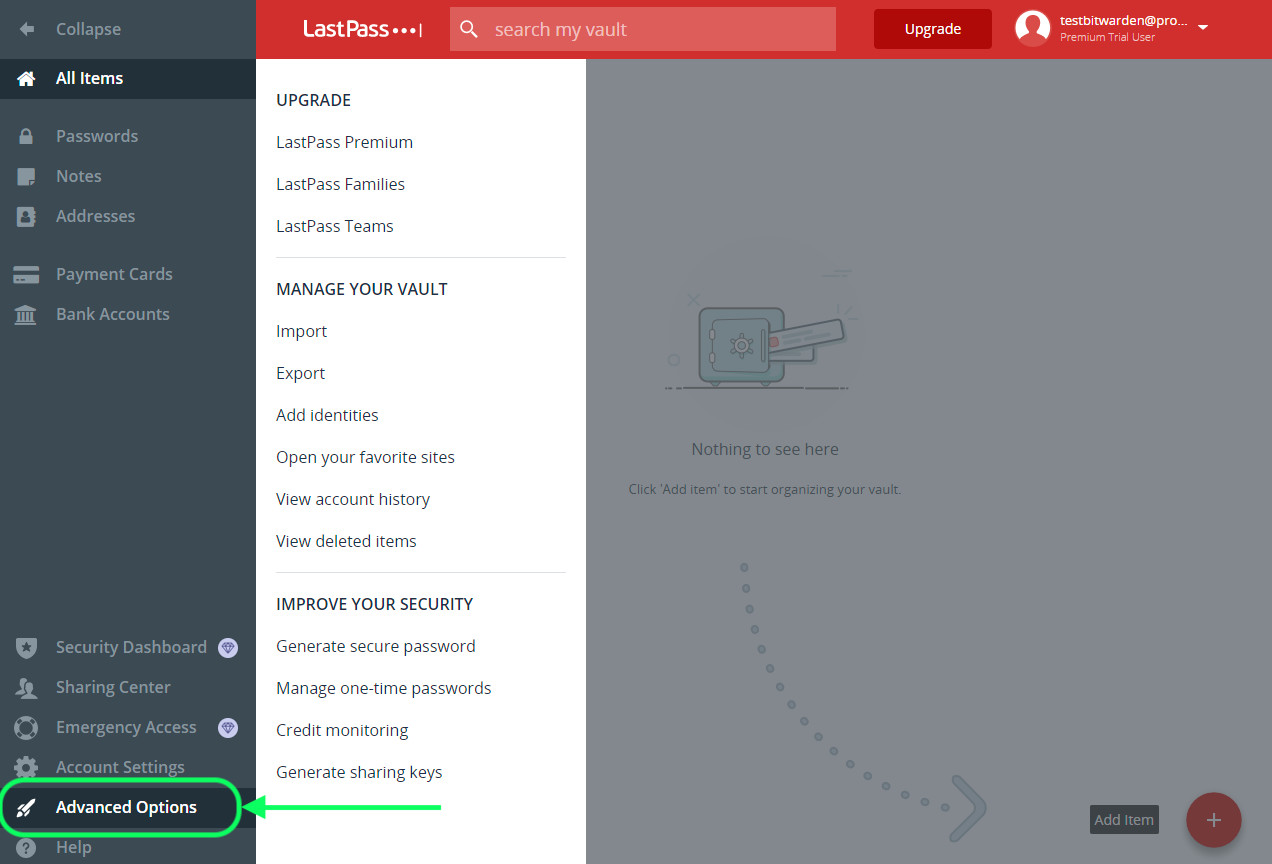
Export from web vault From the Manage your Vault section, select the Export option. At this stage, LastPass will send you an email to confirm the export.
In your inbox, confirm the export, return to your LastPass web vault, and select the Export option again to complete export.
Depending on your browser, your data will either be automatically saved as a
.csvor printed to the screen in a.csvformat: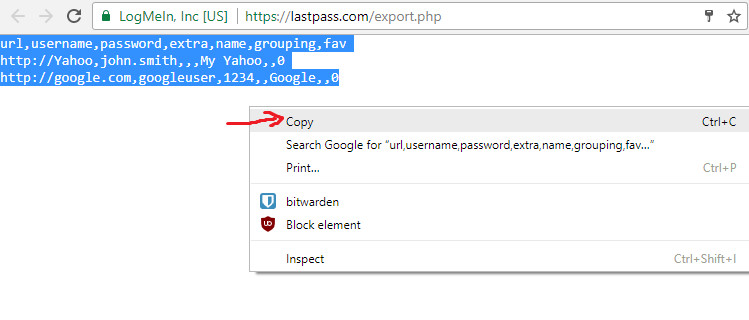
LastPass export If your data was printed to the screen, highlight the text and copy and paste it into a new
export.csvfile.


warning
Some users have reported a bug which changes special characters in your passwords ( &, <, >, and so on) to their HTML-encoded values (for example, &) in the printed export.
If you observe this bug in your exported data, use a text editor to find and replace all altered values before importing into Bitwarden.
Import directly from LastPass or use an exported file from LastPass. If you're a member of a team using SSO with LastPass, a LastPass administrator will need to complete a short setup procedure before you can use the Direct import option to import your personal data. In all cases, data is encrypted locally before being sent to the server for storage.
note
While some item types cannot be imported, you can still add them to a vault:
Upload file attachments to the new vault individually.
Re-create Sends in the new vault.
tip
If you're a member of a team using SSO with LastPass, a LastPass administrator will need to complete a short setup procedure before you can use the Direct import option (learn more).
Password Manager browser extensions and desktop apps can import individual vault data directly from your LastPass account, without requiring you to upload a file. To do a direct import:
Log in to the Bitwarden browser extension or desktop app.
In the browser extension, select the Settings tab and choose Vault and then the Import items option. Or, in the desktop app, select Import from the navigation menu.
Complete the following fields from the drop down menus:
Vault or Import destination: Select the import destination such as your individual vault or an organizational vault that you have access to.
Folder or Collection: Select if you would like the imported content moved to a specific folder or organization collection that you have access to.
File format: Select LastPass.
In the LastPass Instructions box, choose the Import directly from LastPass option.
Enter your LastPass email. If you're importing on behalf of your business, we recommend using the credentials of a LastPass admin. Using super admin credentials may cause import to fail.
Select the Import data button to trigger the import.
You will be prompted for your LastPass master password or, if your LastPass account uses SSO, to log in to your IdP. In either case, follow the prompts to log in to your LastPass account.
tip
If your LastPass account has multi-factor authentication activated, you will be prompted to enter a one-time passcode from your authenticator app. If you use Duo for MFA, only in-app approval is supported to fulfill your MFA requirement.
Additional items such as file attachments and trash will need to be manually uploaded to your vault.

warning
The following IdPs are not supported for direct import by LastPass accounts using SSO:
Google Workspace
ADFS
If you're an administrator of a team using SSO with LastPass, you will need to complete the following before your team can use the Direct import option:
Add
bitwarden://sso-callback-lpandbitwarden://import-callback-lpas permitted callback URLs (in some IdPs, "Reply URLs" or "Redirect URLs") in your IdP's LastPass application.
If your users will use the Password Manager browser extension, add:
Add
https://vault.bitwarden.com/sso-connector.html?lp=1,https://vault.bitwarden.eu/sso-connector.html?lp=1, orhttps://your.server.com/sso-connector.html?lp=1as a permitted callback URL (in some IdPs, "Reply URL" or "Redirect URL") in your IdP's LastPass application.Add
chrome-extension://nngceckbapebfimnlniiiahkandclblband/orchrome-extension://jbkfoedolllekgbhcbcoahefnbanhhlhas a permitted callback URL (in some IdPs, "Reply URL" or "Redirect URL") in your IdP's LastPass application. Firefox extensions do not currently support direct import if your LastPass organization uses SSO.
If an "Import error" message appears, no data was added to your vault. Fix the import file issue and try again.
Free Bitwarden organizations can have up to two collections to organize items. When importing data, Bitwarden treats LastPass grouping values like collections. If your LastPass export contains three or more grouping values and you're part of a free Bitwarden organization, you'll receive a "This organization can only have a maximum of two collections" import error. The following .csv, for example, would cause this error:
Bashurl,username,password,totp,extra,name,grouping,fav https://www.facebook.com/login.php,username,password,,,Facebook,Social,0 https://twitter.com/login,username,password,,,Twitter,Social,0 https://asana.com/,login,password,,,Asana,Productivity Tools,0 https://github.com/login,username,password,,,Github,Productivity Tools,0 https://www.paypal.com/login,username,password,,,Paypal,Finance,0 https://www.bankofamerica.com/,username,password,,,Bankofamerica,Finance,0
To solve this issue, delete the grouping column and the grouping datum for each item, including the trailing comma, for example edit:
Bashhttps://github.com/login,username,password,,,Github,Productivity Tools,0
down to:
Bashhttps://github.com/login,username,password,,,Github,0